
In this section (4)
The chart wheel
What the chart wheel shows
The chart wheel is the centre of the Chart, where the chart you are on is drawn with its signs, houses, planets and aspects. The Ascendant and Midheaven are drawn heavier than the other cusps, and each planet's position is written beside it. The corners carry the chart's name, date, time, place, zodiac and house system; Labels in Wheel settings chooses which of those show, and what is written beside each planet. Click the chart's name for Edit chart data and Make a copy….
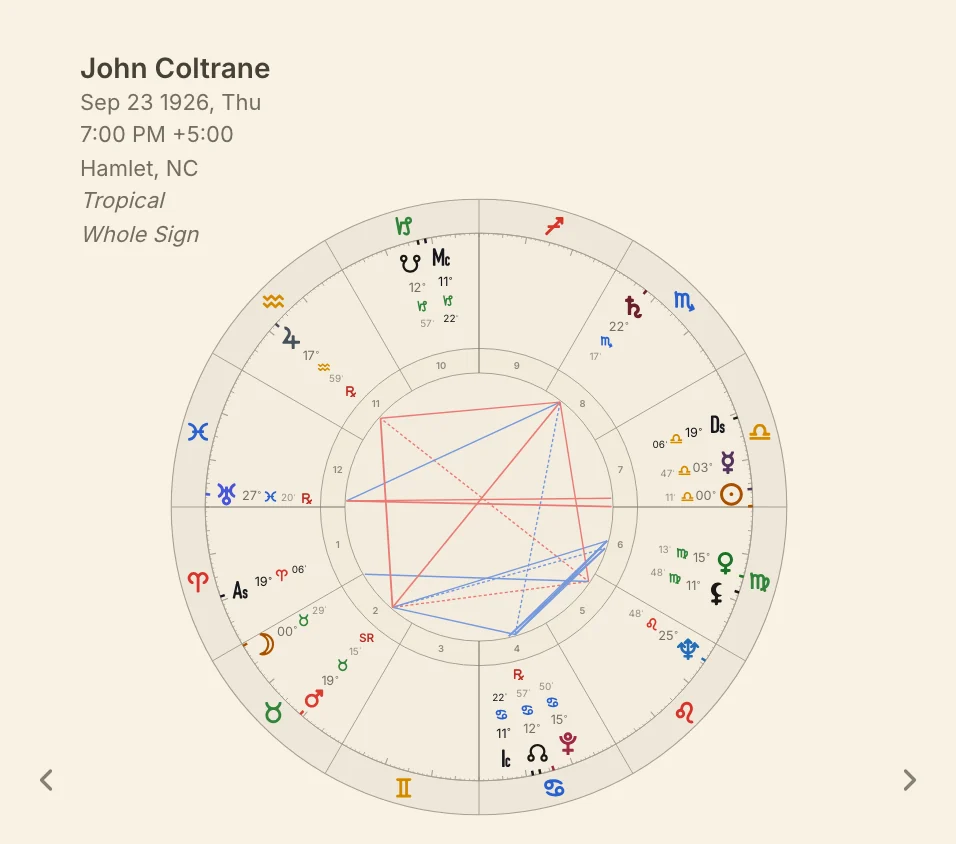
The aspect lines in the middle show every aspect at once. Click a planet to pick out its aspects on their own, and the other lines stay faded until you click empty space. How strong the lines look is in Aspect settings.
To read a crowded stretch, pinch on the trackpad over the wheel or press + and −, and scroll with two fingers to move around. Double-click zooms to twice the size at that spot and back again, and 0 resets it.
To read a crowded stretch, pinch to zoom and drag to move around. Double-tap zooms to twice the size at that spot and back again.
The point card on the wheel
Every point on the wheel has a card with its details, so you can read a placement without leaving the chart.
Rest the pointer on a planet, an angle, a lot or a star and its card opens. Clicking a point to pick out its aspects keeps its card closed until you move off it.
Tap a planet, an angle, a lot or a star, and its card docks under the wheel.
A planet's card gives its longitude, its house, its daily travel and its declination, marked when the planet is out of bounds, with its status (direct, retrograde, stationary retrograde or stationary direct), the Moon's phase, and the last and next stations with date and degree. On a progressed ring the stations are dated in the person's life, and a solar arc ring has none, since nothing on it turns. An angle or lot card gives longitude and house, a fixed star's adds its heliacal rising and setting, and a midpoint's shows what stands on it.
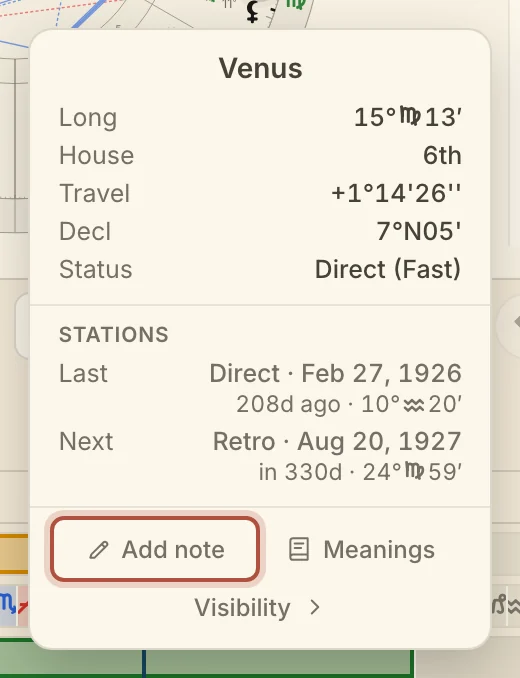
Add note, at the foot, writes a note about this placement, tagged with the point, its sign and its house, and notes already written about it are listed above. Meanings opens the point's page in the catalogue. Visibility › gives, for each sighting rule in the visibility settings, when the planet was last seen and when it is first seen again.
Extra rings on the wheel
Extra rings are bands around the wheel, such as bounds or decans, so you can read them straight off the chart. The bands are a second zodiac, the constellations at their real widths, nakshatras, lunar mansions, decans with their lords, bounds, ninth parts and twelfth parts, and all start off. Rings in Wheel settings turns them on for every new chart and sets the tables and frames they use. To change the bands on the chart you are on only, use Rings in the wheel menu; that choice stays with the tab.
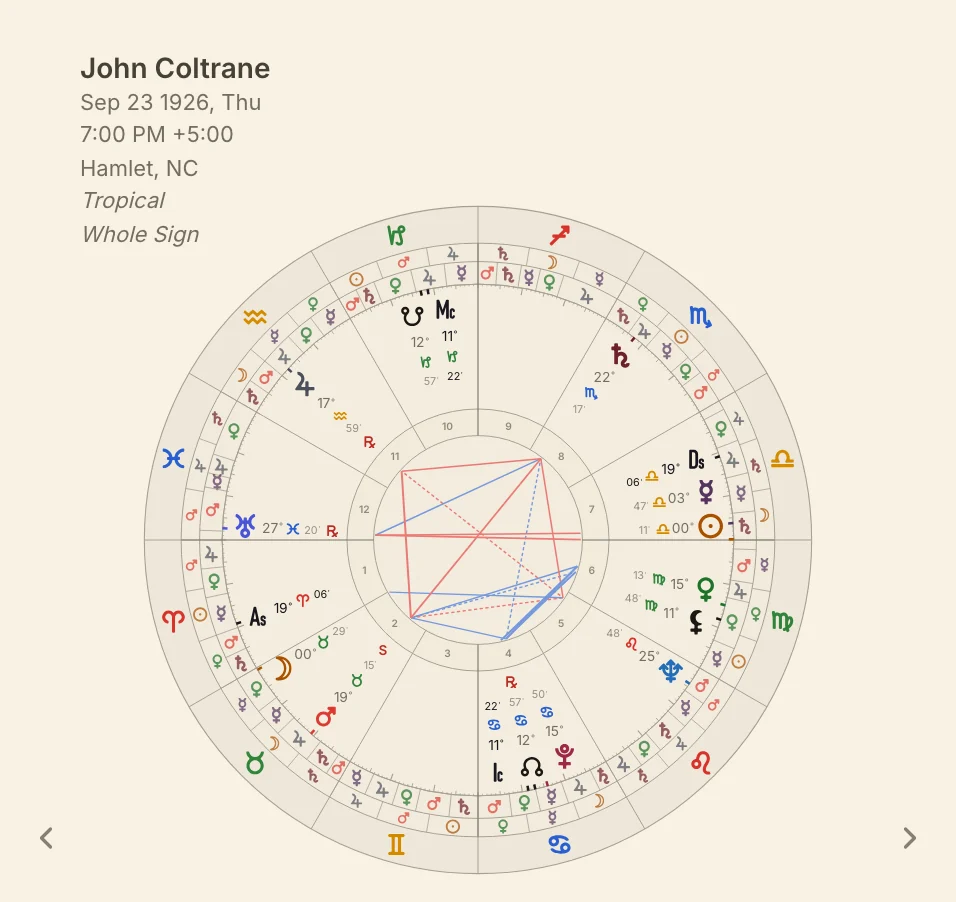
Click a nakshatra, a lunar mansion or a constellation on its band to open its page in Meanings. Degree ticks, planet ticks, aspect glyphs and house numbers are under Display in the same settings.
The star map on the wheel
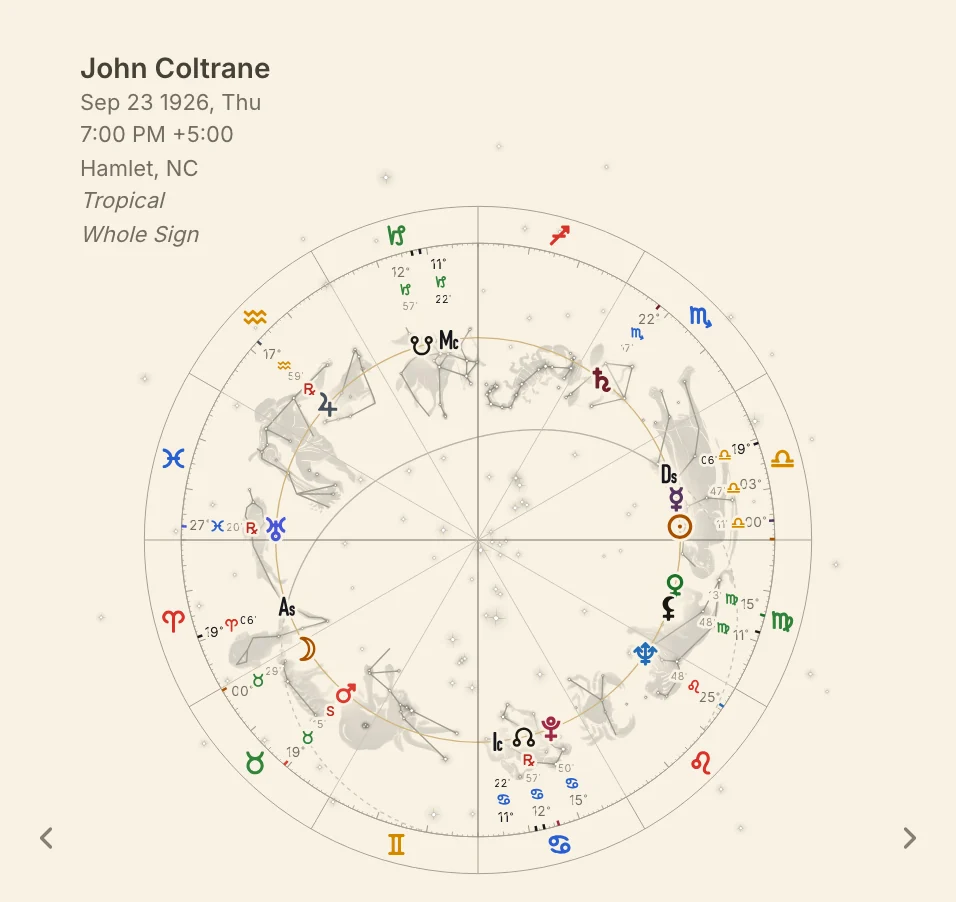
The star map lays the real sky under the wheel, with the twelve zodiac constellations drawn on their own stars and every constellation named, and it follows the chart's date and zodiac. Turn it on for the chart you are on from Overlays in the wheel menu, or for every chart under Overlays in Wheel settings. Which stars it carries, and whether it draws the constellation artwork, the names and the chart's horizon, is set under Star map there.
The Diagrams menu
The Diagrams menu draws a planet's cycle with the Sun from the chart you are on, either as a figure laid on the wheel or as a diagram of its own.
Click Diagrams in the top bar, beside Cast.
Tap the active tab, then Diagrams…. The list opens as a sheet.
The chart it draws from is named under Chart at the top. Figures join a planet's meetings with the Sun on the planet band, in time order: the Mercury triangle, a year of Mercury and its three retrogrades; the Venus star, eight years with the Venus Star Point and the four meetings around it; and the Mars heptagon, fifteen years of Mars and its seven oppositions. A figure also offers which kind of meeting it is drawn from, Own, Morning or Evening for Mercury and Venus and Own, Opposition or Conjunction for Mars. Cycles draw one planet's whole path round the Earth, loop by loop, for Mercury, Venus, Mars, Jupiter and Saturn.
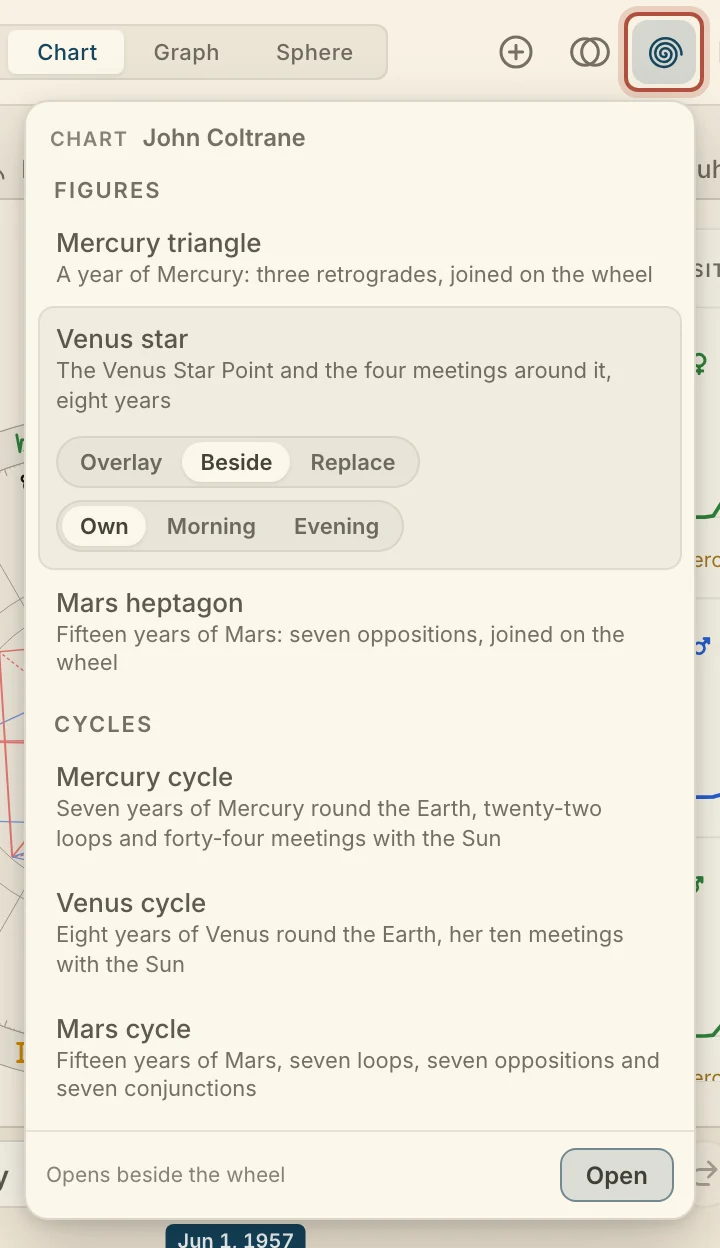
Click a row to pick it, then click it again or click Open. Overlay draws a figure on this wheel, one at a time, and Overlays in the wheel menu or in Settings turns one on the same way. Beside opens the diagram on its own wheel next to this one, and Replace opens it in this wheel's place. Hover a point of a figure, or tap it, for the date of the meeting and the native's age then. While a diagram or figure is showing, a Wheel row at the top of the menu goes back to the chart's wheel.
Comparing two charts on one wheel
Arcus can put a second chart on the same wheel, such as a transit chart, a return or someone else's chart, so you can read the two together. It sits as an extra ring, or the charts open side by side as separate wheels, and a cast chart lands either way from the Cast menu. Drag a wheel's name card onto another wheel to combine them, or drag a ring off a wheel to split it out, on dragging rings and wheels.
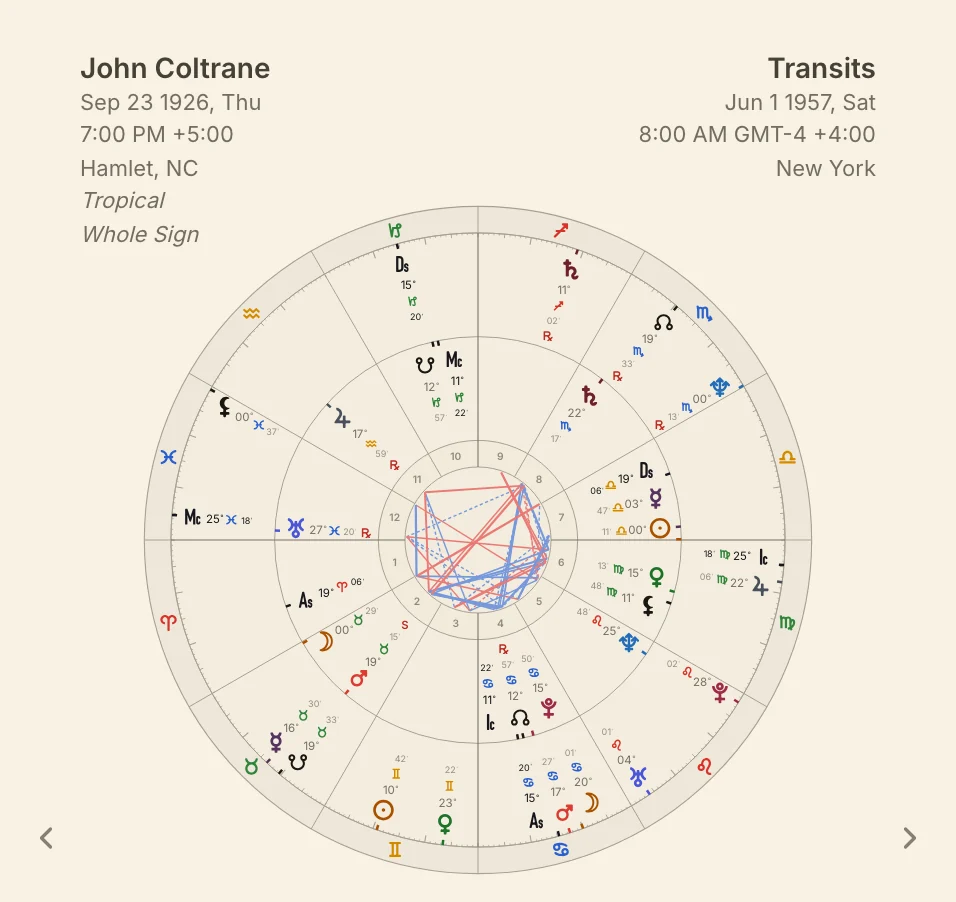
Right-click the wheel
The wheel menu changes what the chart you are on shows, while Settings still holds the defaults for new charts.
Right-click the wheel. The menu names the ring you opened it on, and you hover a section to open it.
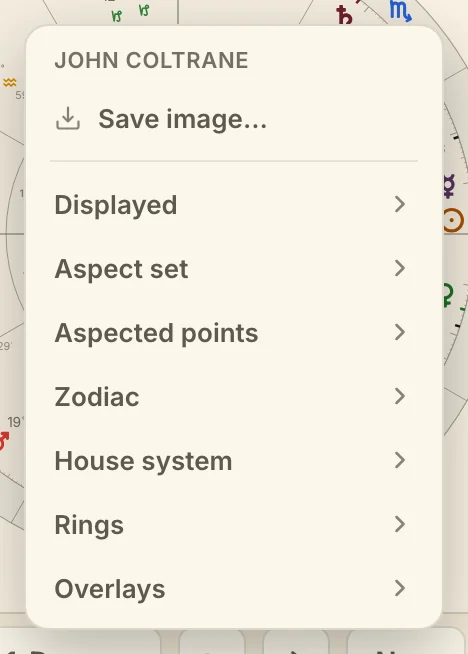
Long-press the wheel, and tap a row to open it.
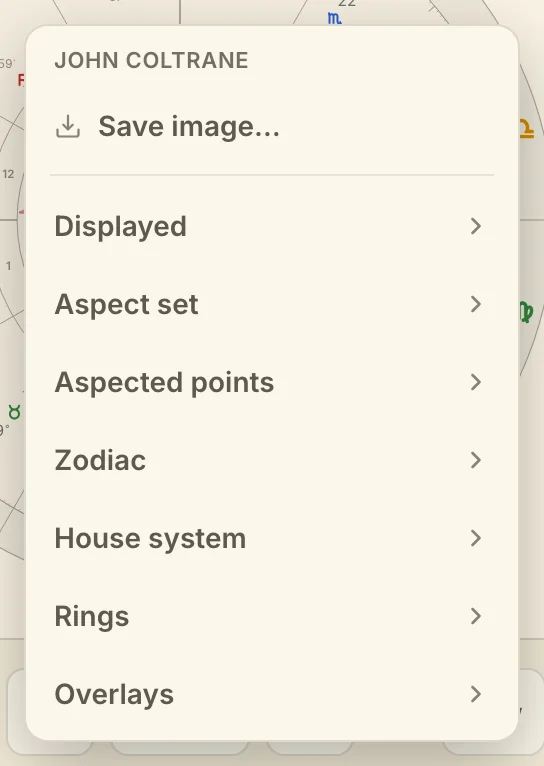
Each section changes this chart only, and Follow Settings goes back to Settings. Displayed, Aspect set and Aspected points hold for this tab, and the Graph uses the same aspect set. Zodiac and House system are pinned on the chart and travel with it; House system lists the systems you used most recently, and House settings… has all of them. Rings turns the bands on for this tab, and Overlays turns on the star map and the figures from the Diagrams menu. Edit points…, Zodiac settings…, House settings…, Ring settings… and Overlay settings… open the matching part of Settings, where the default changes.
Saving the wheel as a picture
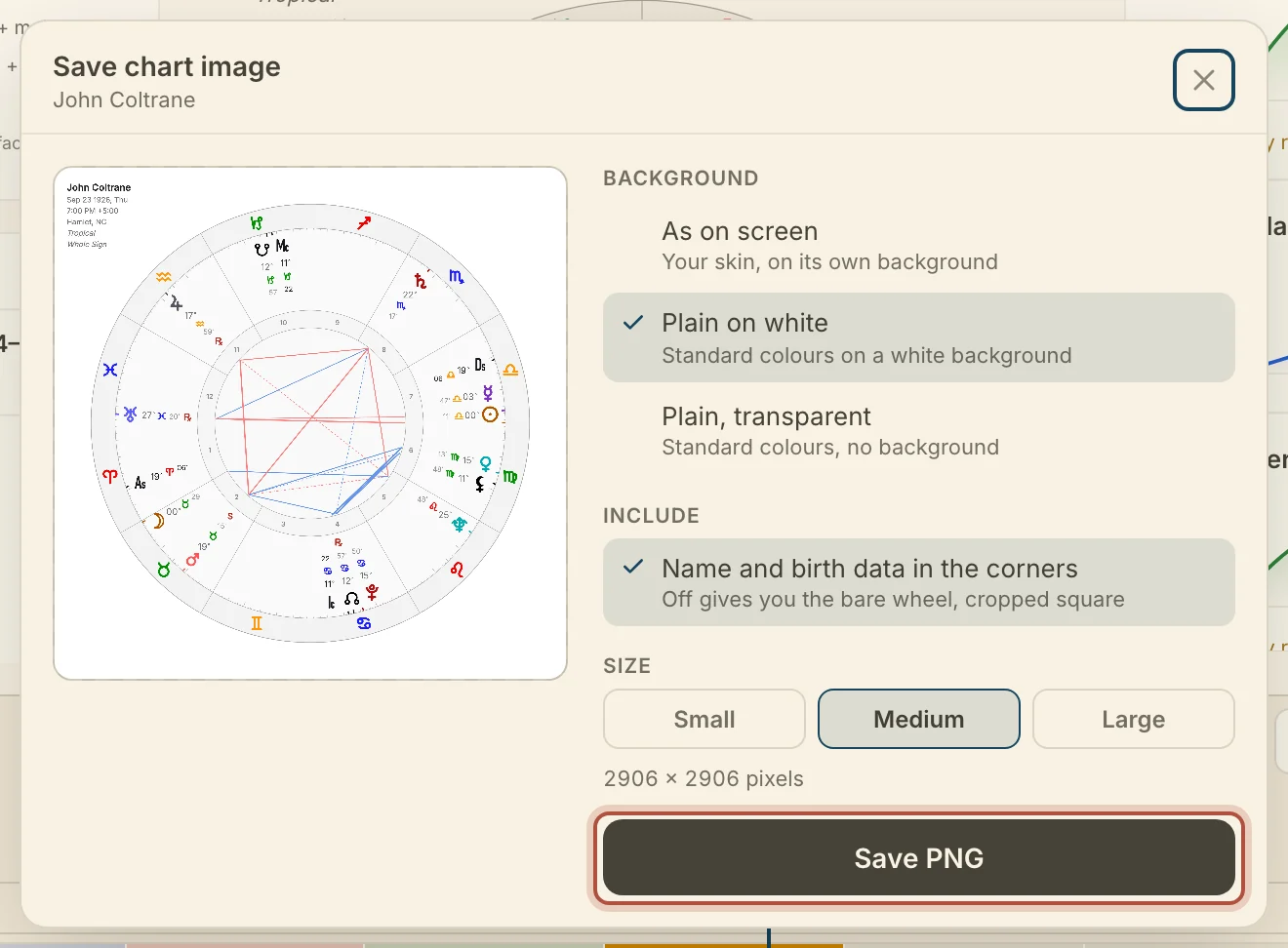
Arcus can save the wheel as a picture, to send to a client or use in your own writing. Choose Save image… at the top of the wheel menu, or in the rings on a tab. The Save chart image window shows the file as it will be saved, with a choice of background (your skin, plain white or transparent), whether the name and birth data go in the corners and the photo in the centre, and the size. Click Save PNG.
Didn't answer it? Write to support@arcusastrology.com.