
In this section (4)
- Casting and opening charts
- Cast a new chart
- Looking up the birth data of a public figure
- Entering the birth date and time
- Setting the birth place
- Making a copy of a chart
- Cast a chart from the chart you are on
- Cast a solar return, lunar return, or planet return
- Cast a progressed chart
- Cast a profected year or month
- Cast a composite or Davison chart
- Cast a relocated chart
- Open a saved chart
- The chart wheel
- Tabs, rings, and wheels
- What clock your birth time is on
Casting and opening charts
Cast a new chart
A new chart starts in the New chart window, where you enter the birth data and Arcus casts the wheel from it.
Click New in the top bar.
Tap + at the end of the tab strip, then A new chart.
The window asks for the name, the type (Natal, Event or Horary), the date and time, the Rodden rating and the place, and a chart needs only the name, the date and the place. As they go in, a line under the place reads off the Ascendant, the Sun and the Moon in the zodiac the chart will be cast in, or the Moon's range over the day when there is no time. Click Calculate Chart to cast it.
The last section of the window switches between Photo, with Upload for a picture of your own and Find photo for a free Wikimedia portrait under the chart's name, and Notes, your standing notes on the person, the same text as About in Notes and events.
Signed in, the window has a Save to my charts switch. Off, the chart opens in a tab as a working chart, which you can file later with Save chart in the tab's chart menu. On, Folder appears, starting on the folder you last saved into, and the chart is saved there as it opens.
Looking up the birth data of a public figure
Arcus can fill in the birth data of a well-known person for you. Type the name, then click Look up beside the Name field. Arcus searches Wikidata and lists the people it finds; pick one and it fills the date, the birthplace with its coordinates, and a portrait. Wikidata has no birth times, so the time is set to 12:00 with a note saying so, and the cursor waits in the time field for the real one. If the name is already in your charts, a line under it says so, and Open → uses that chart. A person's dated life events come in separately, from Import in Notes and events.
Check date & place says whether Wikidata's date and birthplace match what you entered, leaving your fields as you typed them, and Open in Astro-Databank ↗ opens Astro-Databank in a new tab, where the recorded time and rating are. Rodden rating records how reliable the data is, from AA to XX, each with its meaning in the list; leave it at Ungraded if you have not graded the data.
Entering the birth date and time
The date and time fields take data quickly from whatever source you have. Type the date the way your source writes it, "May 4, 1469" or "5/4/1469", or pick it from the calendar. Dates before 1582 are read on the Julian calendar, and dates in antiquity, BC included, are accepted. Type the time as digits and they fill the hour, then the minutes: 940 is 9:40 and 1155 is 11:55, and a or p sets am or pm. Clicking the time opens columns of hours and minutes to scroll, or press on the hour or the minutes and drag to wind them.
Date and time share one row. Tap am or pm to switch it.
When the birth time is not known, tick Time unknown under the time. The chart is cast for noon or for sunrise, whichever Chart frame settings names under Unknown birth time, and the time field shows that moment, dimmed. Ticking Time unknown sets the Rodden rating to X, and choosing X or XX as the rating ticks Time unknown for you. An untimed chart draws no angles and no houses unless Hide angles for untimed charts is turned off in the same settings.
Setting the birth place
The birth place gives the chart its coordinates and its clock, so Arcus needs one before it can cast. Type the town in Location and pick it from the list. The line under it shows the coordinates and the time zone offset Arcus worked out for that place and date, including the historical clocks covered in what clock your birth time is on. Click Adjust to set either by hand. Coordinates takes 41N52'43", 71W22'59" or 41.8781, -71.3828, and Time zone takes an offset such as +5:00, west of Greenwich positive. Auto beside a field hands it back to the place. See set the offset by hand.
Making a copy of a chart
Making a copy lets you try different birth data, such as another time while you rectify, and leave the original as it was. Click the chart's name on the wheel, then Make a copy…. Or click the active tab and choose Make a Copy… from the chart's menu.
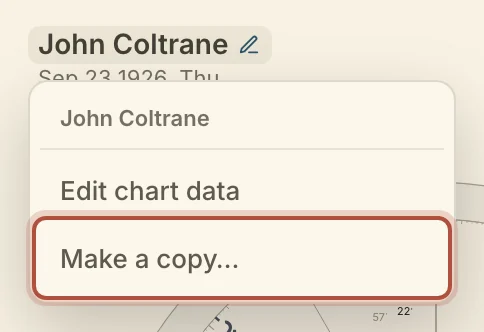
The Copy chart window opens on the original's data under a numbered name, such as "Ada Lovelace (2)". Change what you need and click Create Copy. The copy is a chart of its own and the original is left as it was. The two are listed together in the Chart family card.
Cast a chart from the chart you are on
Cast builds returns, progressions, profections and the other derived charts from the chart you are on, without entering any data again.
Press ⌘D, or click Cast in the top bar.
Tap the active tab, then Cast…. The list opens as a sheet.
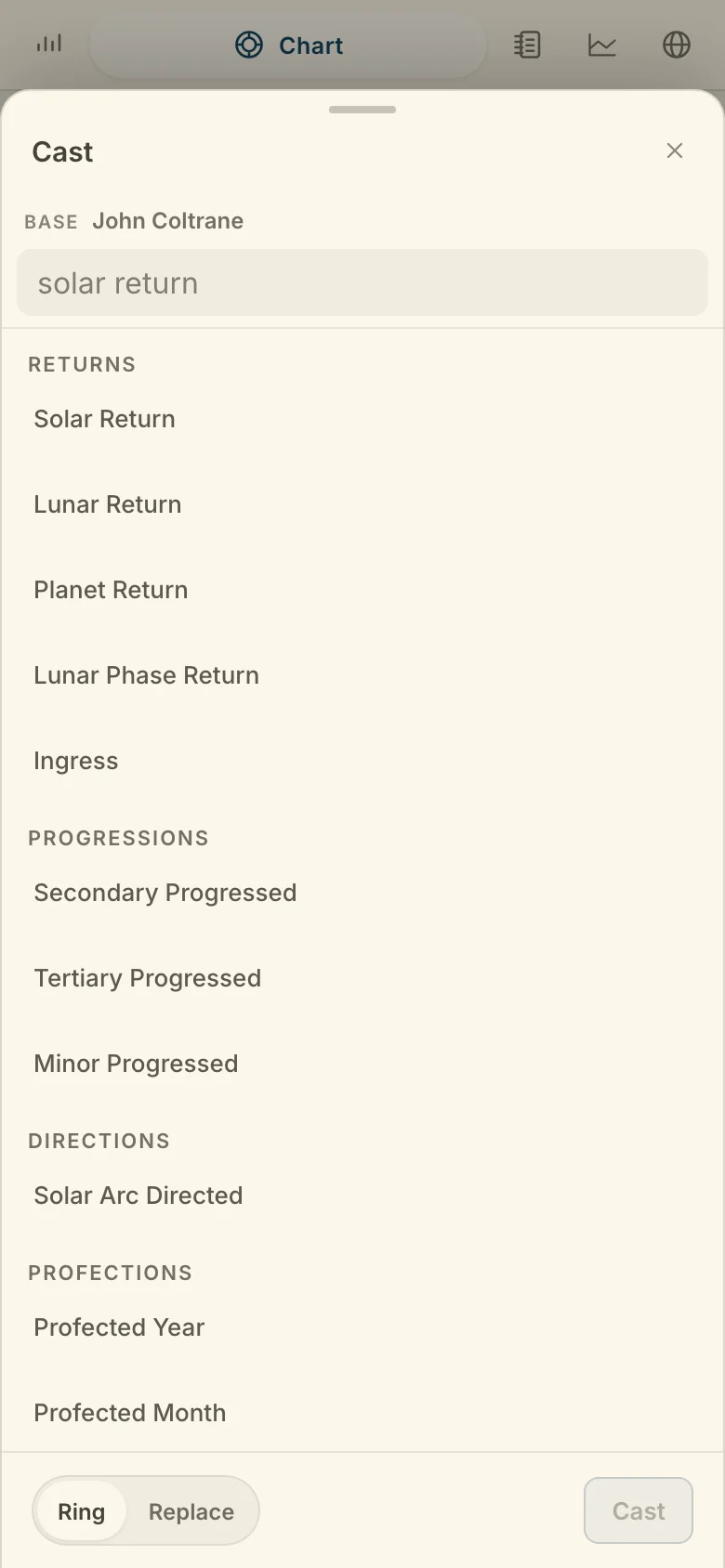
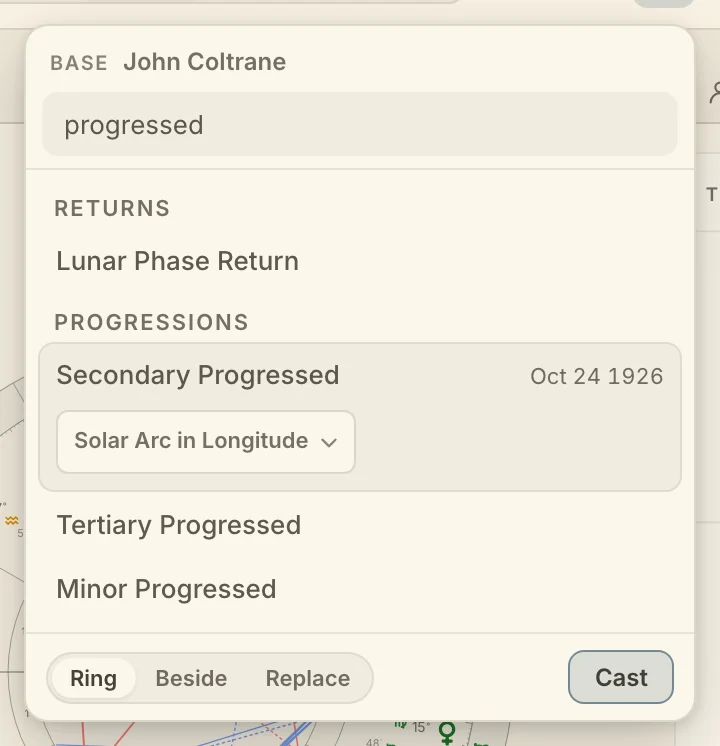
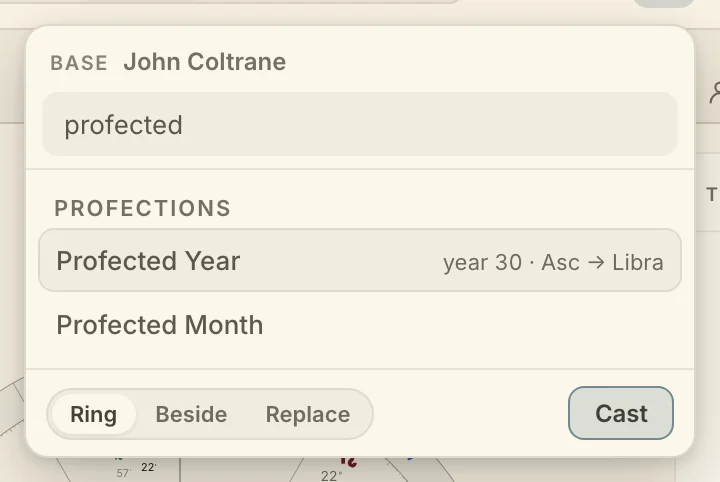
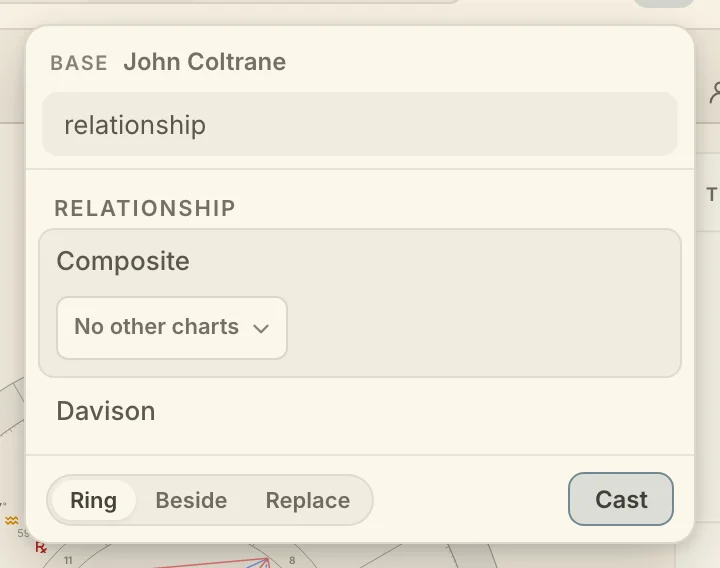
The chart it builds from is named under Base at the top. Type to narrow the list: "lunar" reaches the lunar return and "sa" reaches solar arc. Click a row to pick it, and its options open under it with what it will cast, such as the date and place of a return. Click the row again, or click Cast, to cast it.
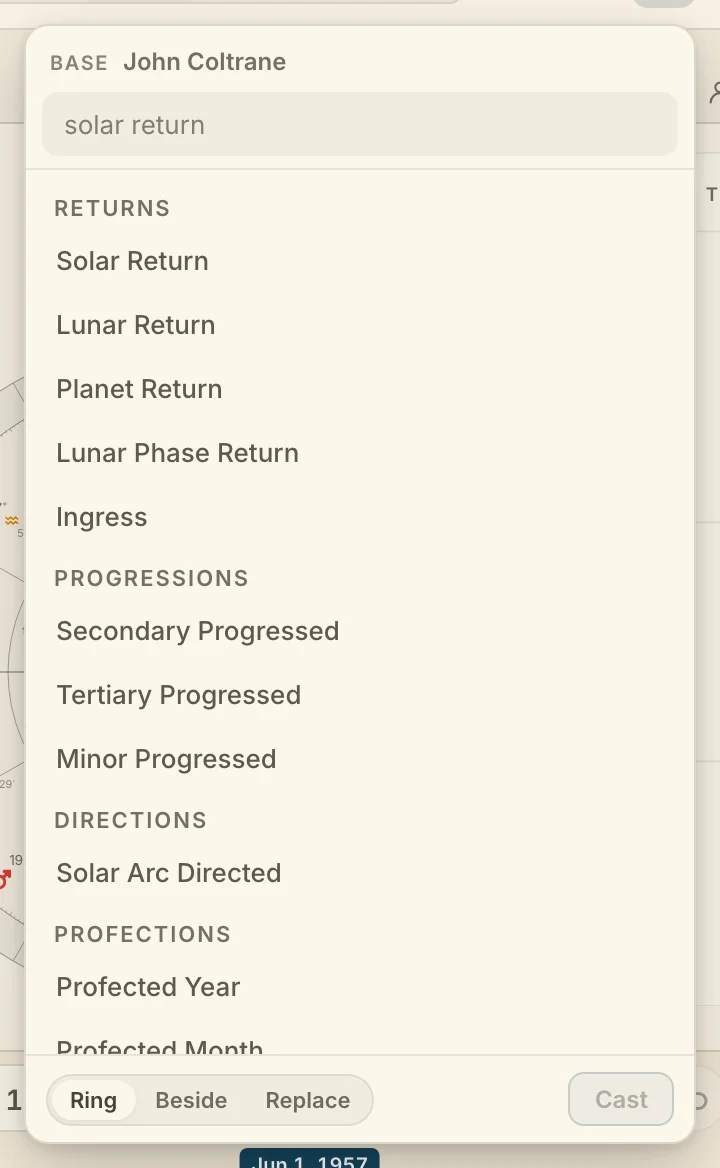
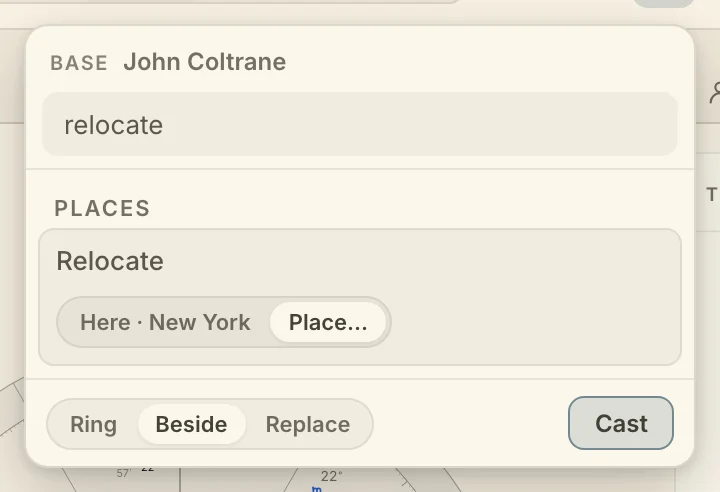
The foot of the menu sets where the result goes. Ring stacks the cast chart on the current wheel, Beside opens it as its own wheel next to this one, and Replace puts it in this wheel's place. Until you choose, returns and Relocate open Beside and everything else opens as a Ring, and once you pick one Cast keeps it for every technique. A chart that replaced its base shows a ‹ link under its name on the wheel, back to the chart it came from.
A phone has Ring and Replace. Returns and Relocate open with Replace until you choose.
Cast a solar return, lunar return, or planet return
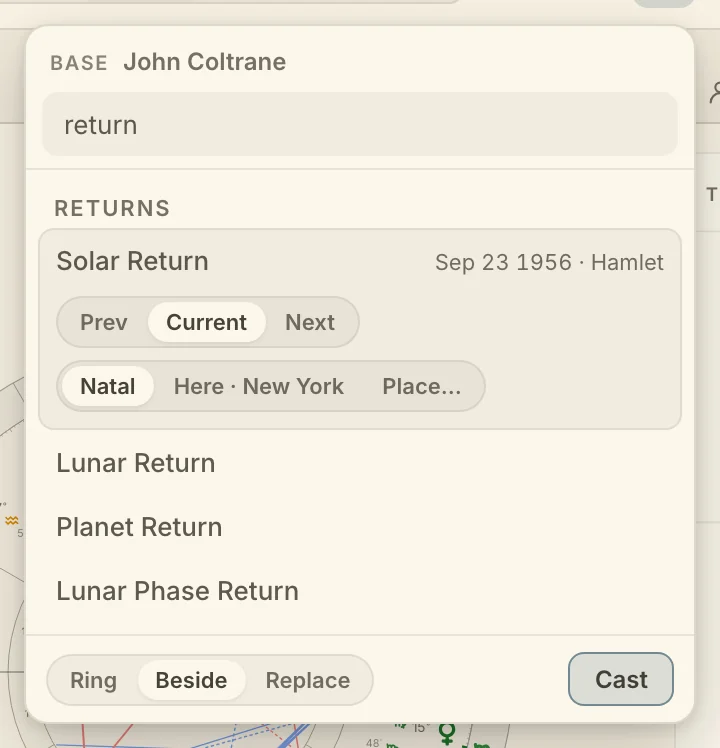
Returns in the Cast list holds Solar Return, Lunar Return, Planet Return for any planet or the North Node, Lunar Phase Return, and Ingress, a body entering a chosen sign or Any sign. Previous, Current and Next choose the occurrence, where Current is the latest one at or before the date you are on. Natal, Here and Place… choose where it is cast: the birthplace, the place you are observing from, or any town from a search. Once a return is on the wheel, the arrows on the chip under its name step to the previous or next one without casting again, as do [ and ], and the pin holds it on that occurrence while you move the date.
Cast a progressed chart
Progressions in the Cast list holds Secondary Progressed, Tertiary Progressed and Minor Progressed, and Directions holds Solar Arc Directed. The list on a progressed row chooses how the angles move for that cast. New casts start on Solar Arc in Longitude, and the other methods, with the rates, are in Progressions settings. A progressed or directed chart moves with the date you are on, so scrubbing the timeline carries it along.
Cast a profected year or month
Profected Year and Profected Month, under Profections, cast the profected chart as a wheel of its own, with arrows on its chip that step to the previous or next year or month. Cast one when you want to read the profected wheel itself. The Profections card reads the same year and month without leaving the chart you are on, and the profections lane on the timeline lays them across the life.
Cast a composite or Davison chart
Composite and Davison, under Relationship, build a relationship chart from two of your charts. The chart you are on is the first, and you pick the second from the list on the row. Neither chart moves with the date, so the result stays put as you scrub, and it lands by the same Ring, Beside or Replace choice as any other cast.
Cast a relocated chart
A relocated chart keeps the birth moment and casts it for another town, so you can read the chart for a place the person lives or travels to. Open Cast and choose Relocate, under Places. Pick Here, or Place… and a town. The row shows the birth moment on that town's clock before you cast. Relocating needs a birth time.
Open a saved chart
The charts you save are kept in Saved Charts, your library, and you can open any of them into a tab.
Click Open in the top bar, or + at the end of the tab strip and then A saved chart.
Tap Look up in the bottom bar, or + at the end of the tab strip and then A saved chart.
Folders, Favorites, search and the rest of the Saved Charts window are on your saved charts.
Didn't answer it? Write to support@arcusastrology.com.