
In this section (1)
The Dashboard
The Orbit row on the Dashboard
The Dashboard reads the current sky, on its own or against a chart, so you can see what is running now and what is coming without opening a chart. The row across the top chooses who the board reads. Sky comes first and reads the live sky. After it comes a chip for each chart in Your Orbit, A to Z, with your own chart first among them, labelled You. Click a chip to read that chart, and Arcus remembers your pick.

Your Orbit is the set of charts you follow closely, such as your own and your clients'. To pin one, click + at the end of the row, and double-click a chart in the window that opens. You can also add a chart from Saved Charts, with Add to Your Orbit on its preview. Your Orbit puts a chart on the Dashboard, while Favorites is only a list in Saved Charts.
When the row is longer than the window, drag it or scroll it. With the row focused, the left and right arrow keys move between chips, and Home and End jump to the ends. Signed out, the Dashboard reads the sky only, and the + asks you to sign in, since Your Orbit lives in your account. What else needs an account is listed in Troubleshooting.
The Dashboard horizon and dial
The time horizon sets how far back and how far ahead the board reads, so you can look at the coming days or the year as a whole. Week, Season and Year sit at the top right of the board. Click one, or press 1, 2 or 3.
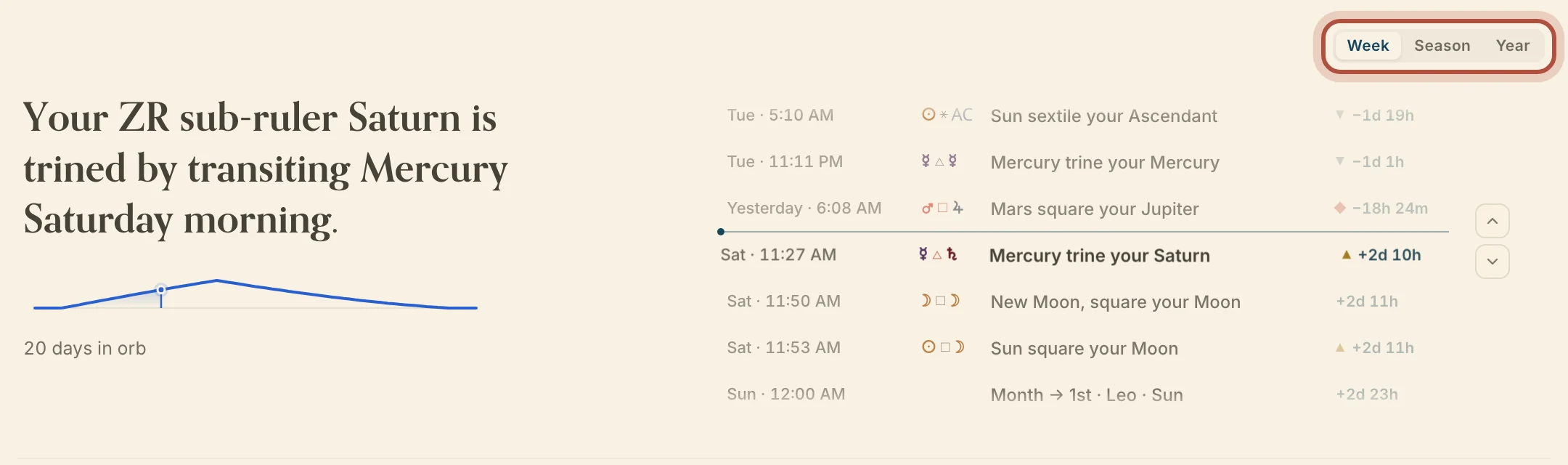
- Week reads 7 days back and 14 ahead, with every body.
- Season reads 30 days back and 90 ahead, and leaves out the Moon, Sun, Mercury and Venus.
- Year reads 90 days back and 365 ahead, also leaves out Mars, and keeps only the eclipses among the lunations.
The dial is the scrolling list in the middle of the board, with what has just happened above the centre and what is coming below. It carries transits, stations, New and Full Moons, eclipses, planets entering the chart's houses, and profection and time-lord changes. Each row gives the date, the glyphs, the event and a countdown, and a dot marks it Applying, Exact or Separating.
Scroll the dial, or use the arrows beside it. Home and End jump to the ends, and once you scroll away, Now brings you back, as does the full stop key. Click a row to open it on the Chart page at that moment, or, for a lunation or station, to move the Dashboard to that date.
On a computer, a column to the left of the dial reads the row at its centre as you scroll, with a sentence about the event, a curve of its orb over time, and facts such as days in orb and the house it falls in.
Choosing the Dashboard sections
The cards beside the dial are sections you choose, so the board carries the techniques you follow. Click Sections above the cards. On a phone, tap the four-square button beside the tabs.
The panel has two groups. On the board lists what is showing, in order, and you drag a row by its handle or use Move left and Move right. The × takes a section off. Available lists the rest, and + puts one on the board.
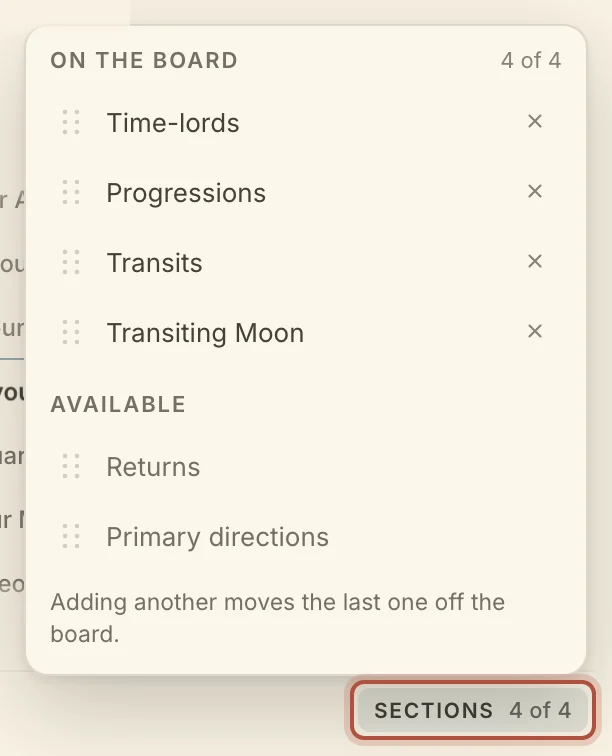
A chart's board offers Time-lords, Progressions, Transits, Transiting Moon, Returns and Primary directions. Primary directions starts off the board, and on a computer so does Returns. The Sky board offers Moon, Lunations and Transits, and you set it up separately.
A card glows for an exact transit, a transit to an active lord, an applying Moon contact under 1°, or an eclipse. On a chart without a birth time, the cards leave out whatever depends on it, as listed in Troubleshooting.
The Dashboard cards
Each card reads one technique for the chart the board is on, and a click on any row opens that technique at that moment. Three cards have a gear.
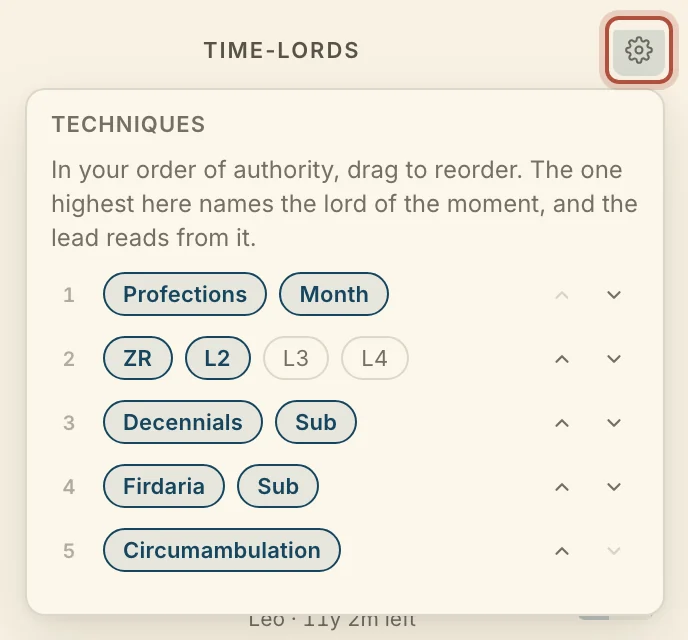
Time-lords names the Chronocrator at the top, then a row for each planet that is lord of something now, with its house, its sign, the time left, and chips saying what makes it lord. Its gear chooses the techniques the card follows, Profections, ZR, Decennials, Firdaria and Circumambulation, with their layers beside them. The list is your order of authority, so drag a technique up or down, and when several activate the same planet, the highest names the lord of the moment.
Progressions follows the progressed Moon through the eight phases and lists the progressed contacts in orb under Active. Secondary, Tertiary and Quaternary switch the rate.
Transits lists the transits in orb now, with a curve and the orb for each. Its gear has three rows. Setup picks which of your saved setups the board uses, for the dial and the card alike, with a button to open the Graph jobs. Orbs picks the orb set. Display sorts the card, Closest to exact or By planet.
Transiting Moon gives the Moon's sign and house now, its contacts to the chart under Now, and the next sign and contacts under Ahead. Returns shows the current and next solar return and the previous, current and next lunar return, each with its rising sign, where its ruler falls and the date. Primary directions lists the directions that perfected recently and the ones coming next, using the settings on your Primary directions card.
With Sky chosen in the Orbit row, Moon shows the Moon's degree, sign, phase and the solar-lunar arc, with the planetary hours under Hours, which need a home location. Its gear has one switch, Void of course, off to start, and with it on the card says when the Moon is void and until when, read as set in Settings. Lunations lists the New and Full Moons and the eclipses around now. Transits lists the planets' aspects to each other, with the same gear as a chart's Transits card.
The Dashboard on a phone
A phone shows one card at a time. Tabs under the dial switch them.
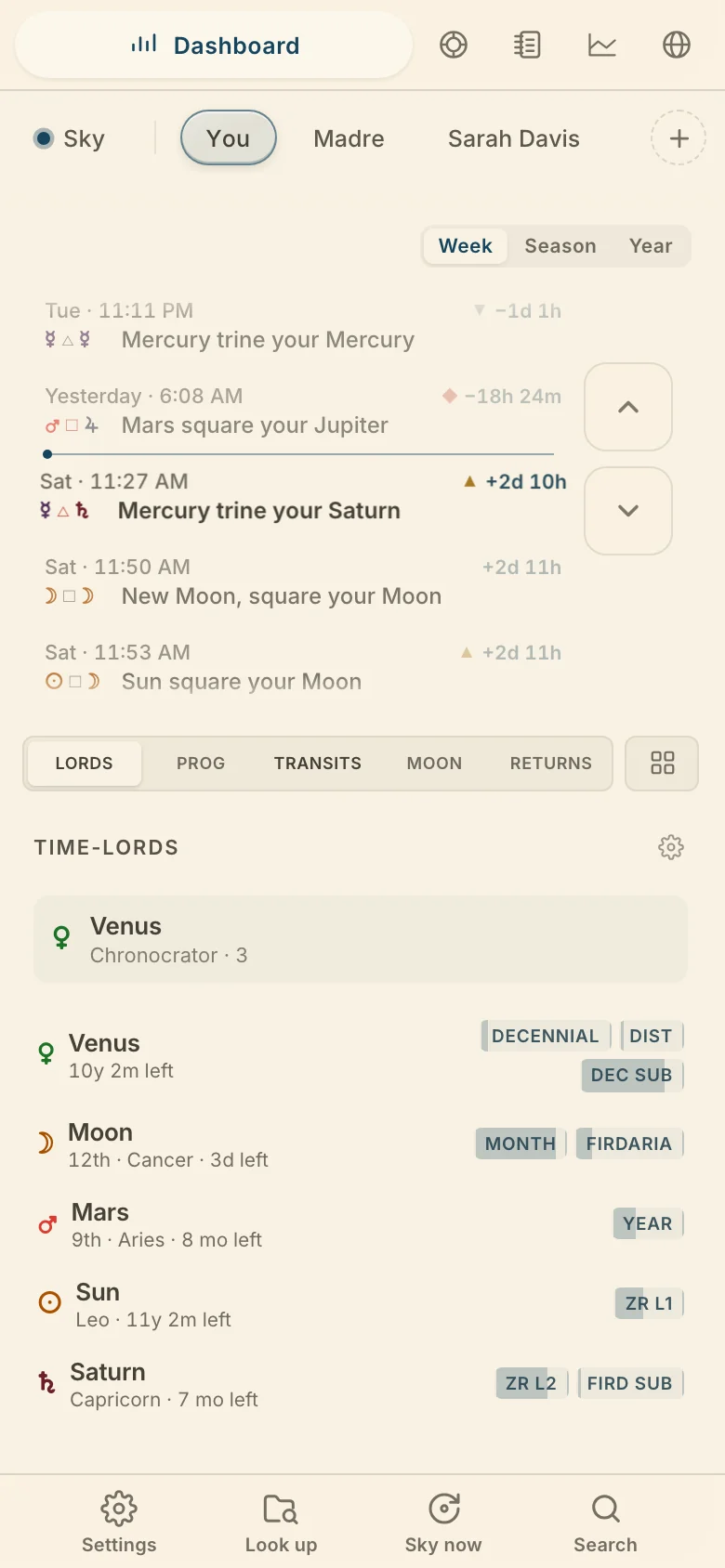
The reading column is on a computer only. Links from the cards open Research.
Didn't answer it? Write to support@arcusastrology.com.