
In this section (1)
Bringing your charts in from another program
Arcus reads the chart files that other astrology programs save and export, so you can bring in the database you built elsewhere. Three kinds of file work: chart files ending in .SFcht, which Solar Fire and Astro Gold save into; an AAF export, the plain text that websites like astro.com give you; and a spreadsheet, meaning any chart list saved as a CSV or TSV file.
Import works on a computer when you are signed in. If your program is not listed below, look for AAF in its export menu, or for any export that gives a spreadsheet or a text file, and if you are not sure what you have, send the file to support@arcusastrology.com and we will tell you whether Arcus can read it.
Import a file into Arcus
Every import goes through the same window, whichever program the file came from.
- Click Open in the top bar.

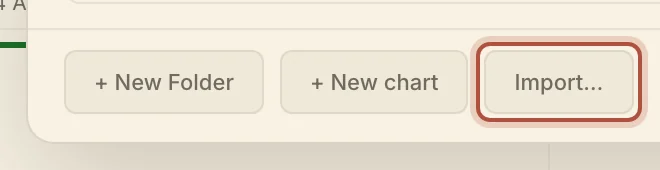
- Click Import… in the footer of the Saved Charts window.
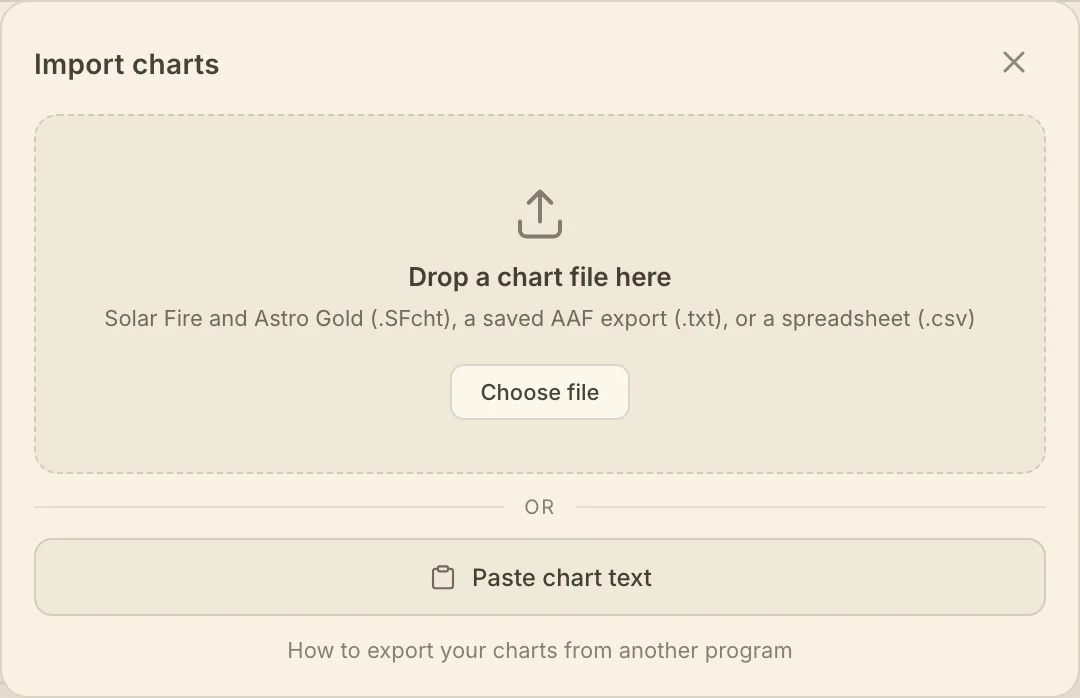
- Drop your file onto the window, or click Choose file. To paste an export, click Paste chart text.
- A spreadsheet adds one step: Arcus guesses which column is the name, the date, the time and the place, and waits for you to confirm or correct the guess.
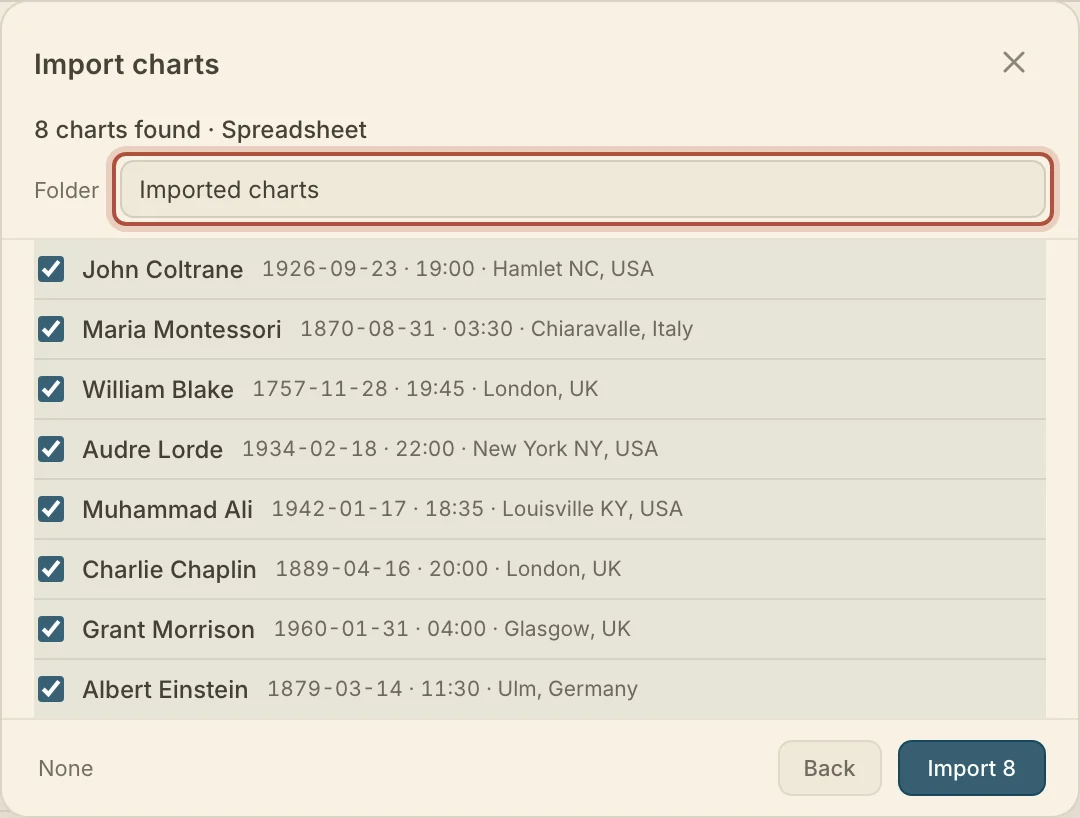
- Check the list that comes back. Charts already in your library are marked and left out, and so is any chart the file lists twice. Type a folder name to keep the new charts together.
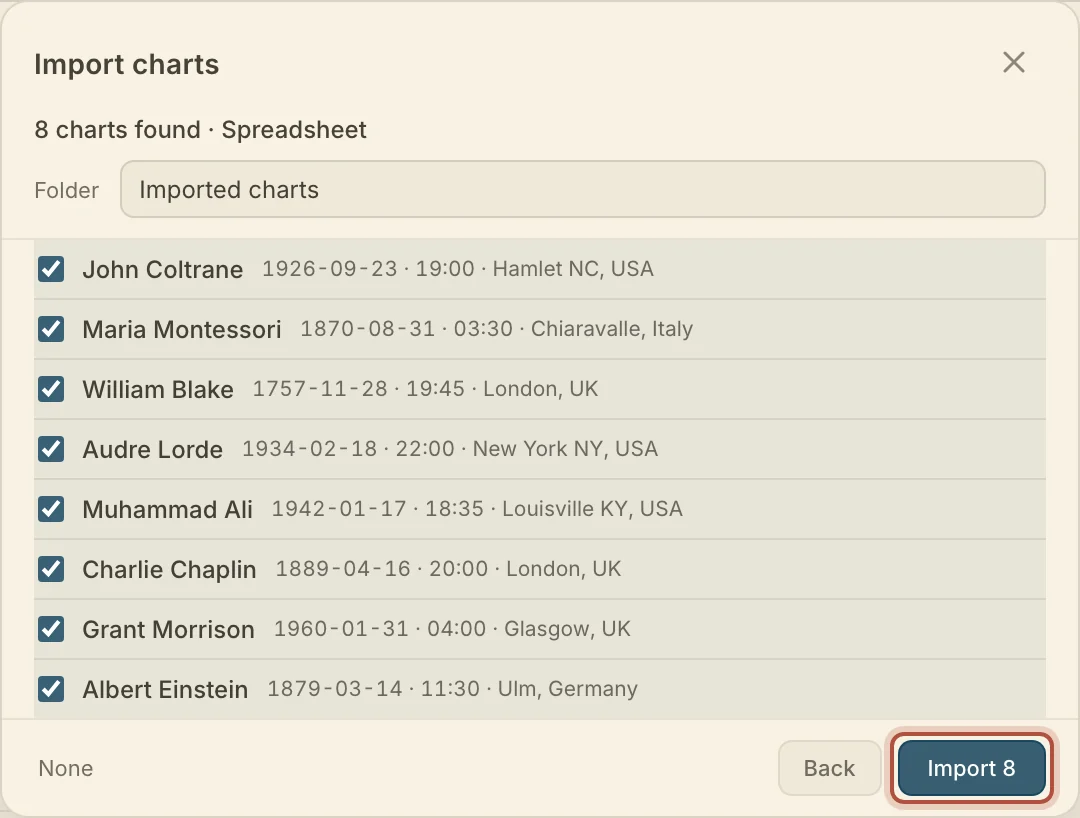
- Click Import.
Arcus takes one file at a time, so repeat the steps for each file.
Importing charts from Astro Gold
Astro Gold's chart files end in .SFcht. On a Mac they are in your Documents folder, in a folder called Astro Gold, or in iCloud Drive in a folder of the same name when Astro Gold is also on your iPhone or iPad. If you are not sure which, look in both. A small cloud beside a file's name in Finder means it is still in iCloud, so click the cloud and wait before you drop the file into Arcus.
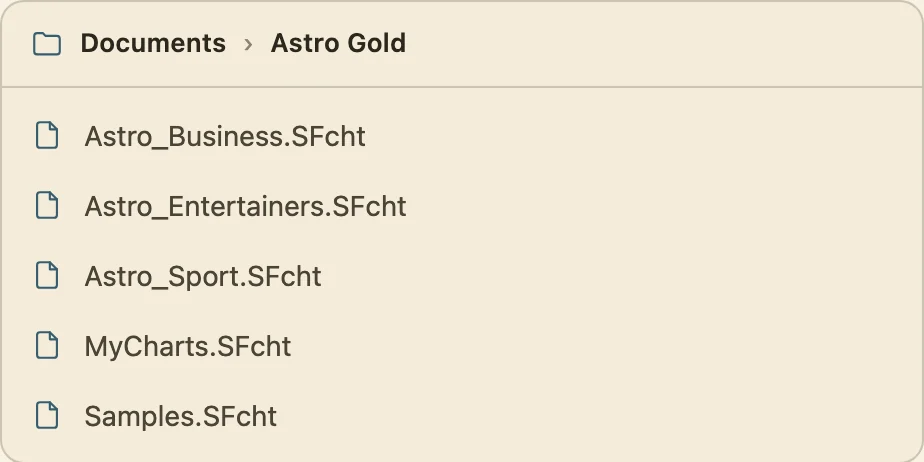
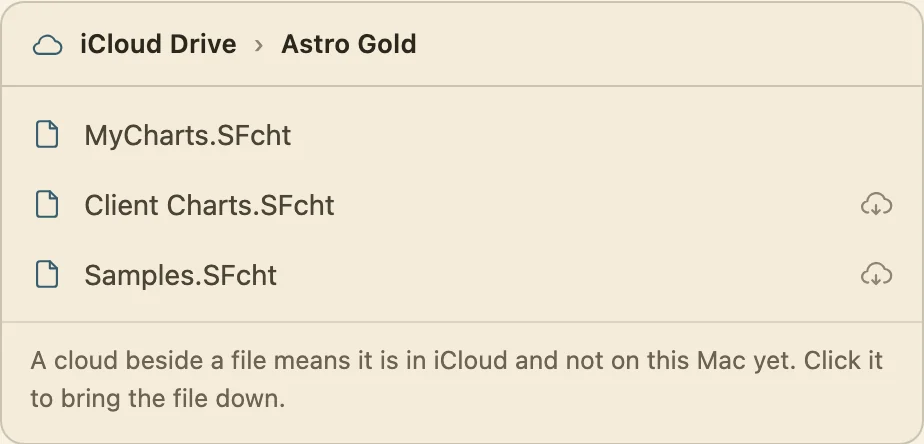
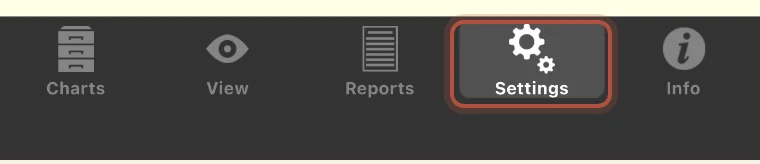
On an iPhone or iPad, Astro Gold sends its chart files out from its own settings.
- Tap Settings, in the bar along the bottom.
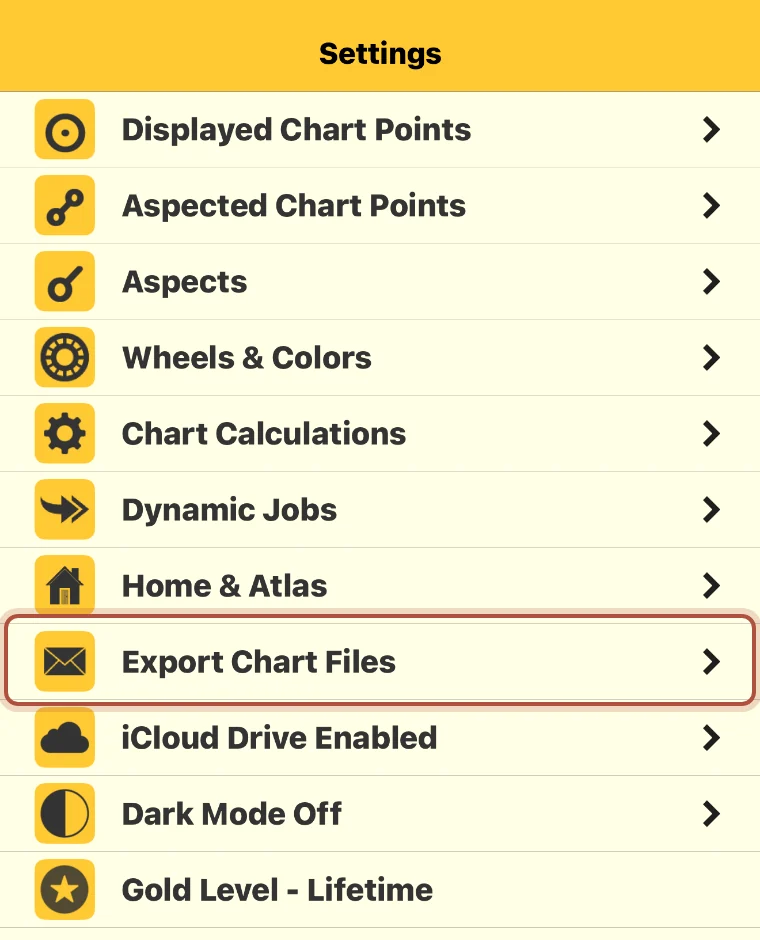
- Tap Export Chart Files.
- Tick the chart file you want, tap Send and email it to yourself. Save the attachment on your computer and import it.
If that settings list says iCloud Drive Enabled, skip the email and import from the Astro Gold folder in iCloud Drive on your Mac.
Importing charts from Solar Fire
Solar Fire's charts are already in files Arcus can read. They end in .SFcht and sit in the folder you see whenever you open or save a chart file. Older chart files ending in .Cht need converting first.
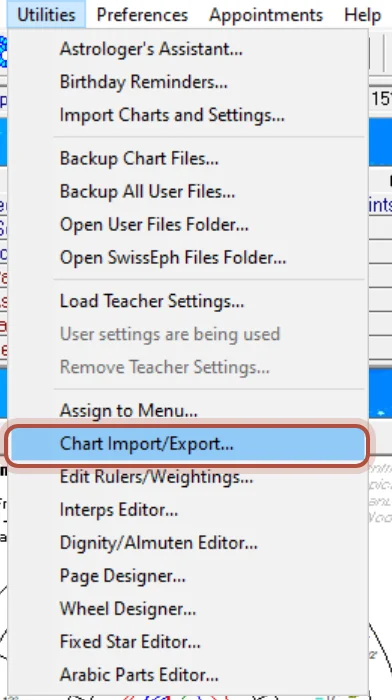
- Go to Utilities, then Chart Import/Export.
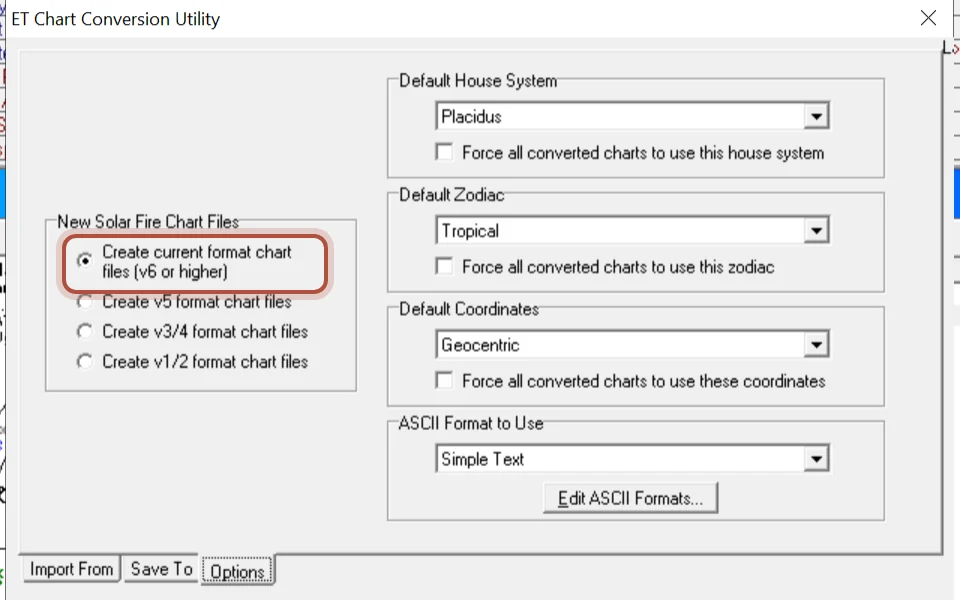
- On the Options tab, choose to create current format chart files, v6 or higher.
- On the Import From tab, point at the old file. On the Save To tab, name the new one. Click Convert.
Solar Fire can also write the charts out as a text file, from Chart, then Export Charts as Text, with Edit ASCII setting what each line carries. Arcus reads that file as a spreadsheet.
Importing charts from astro.com or AstroSeek
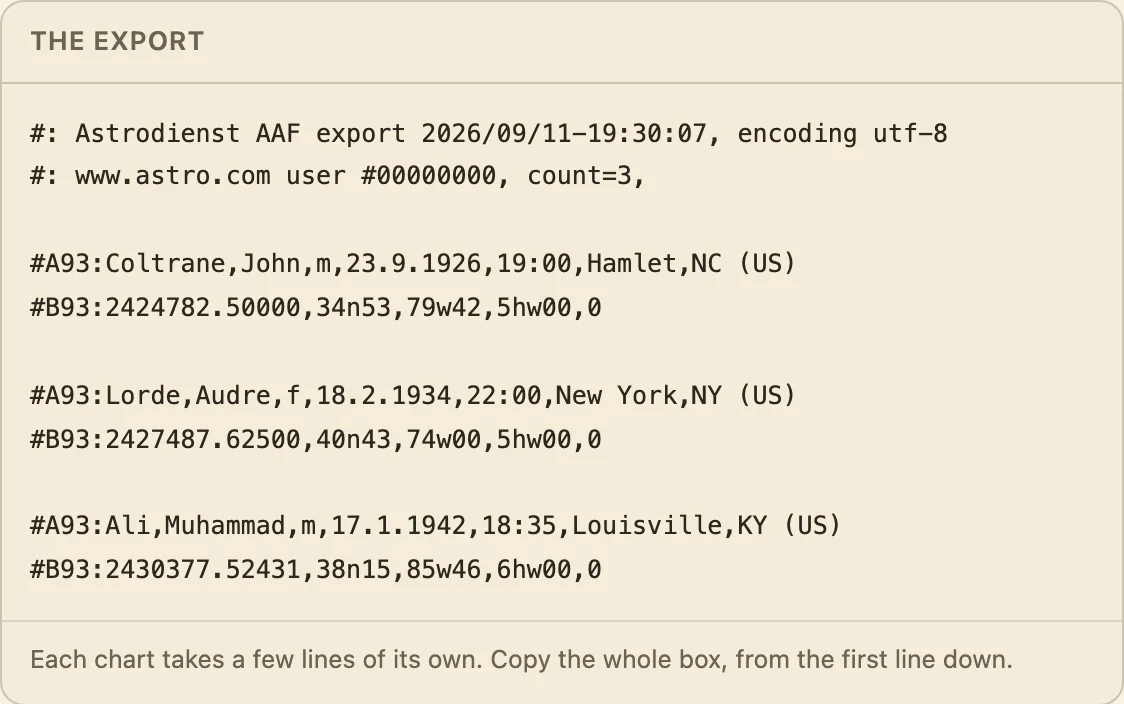
Both sites give your saved charts as an AAF export, which is plain text you copy there and paste into Arcus.
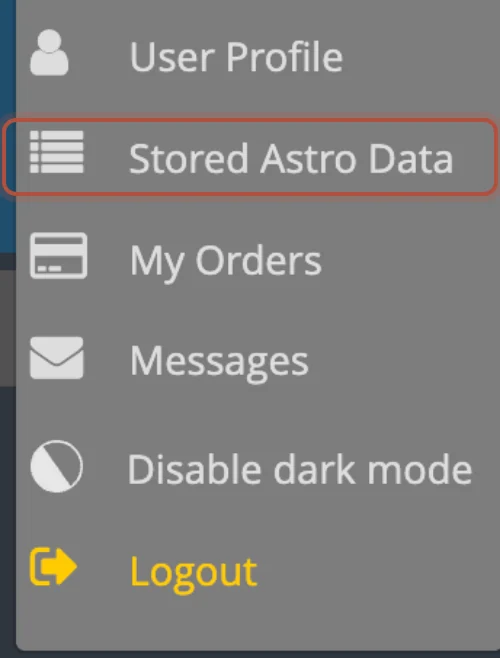
On astro.com, sign in, open the My Astro menu at the top right, and choose Stored Astro Data. Click the aaf button at the end of the row of letters above the list, and copy everything in the box that appears. The aaf button appears once you have more than ten charts saved.

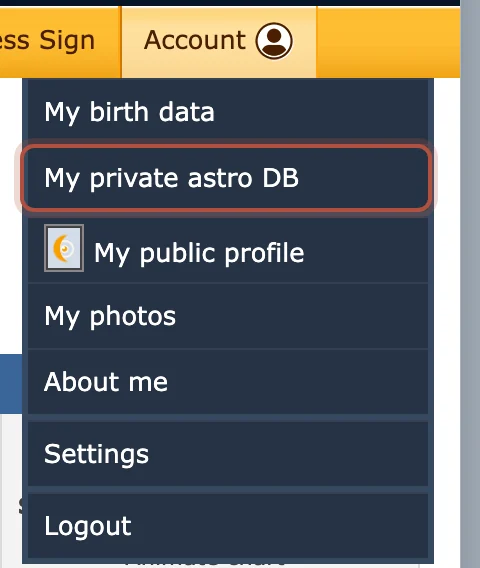
On AstroSeek, sign in, open the Account menu at the top right, and choose My private astro DB. At the very bottom of the Saved persons list, click Database backup, export in AAF format, and copy everything in the box.

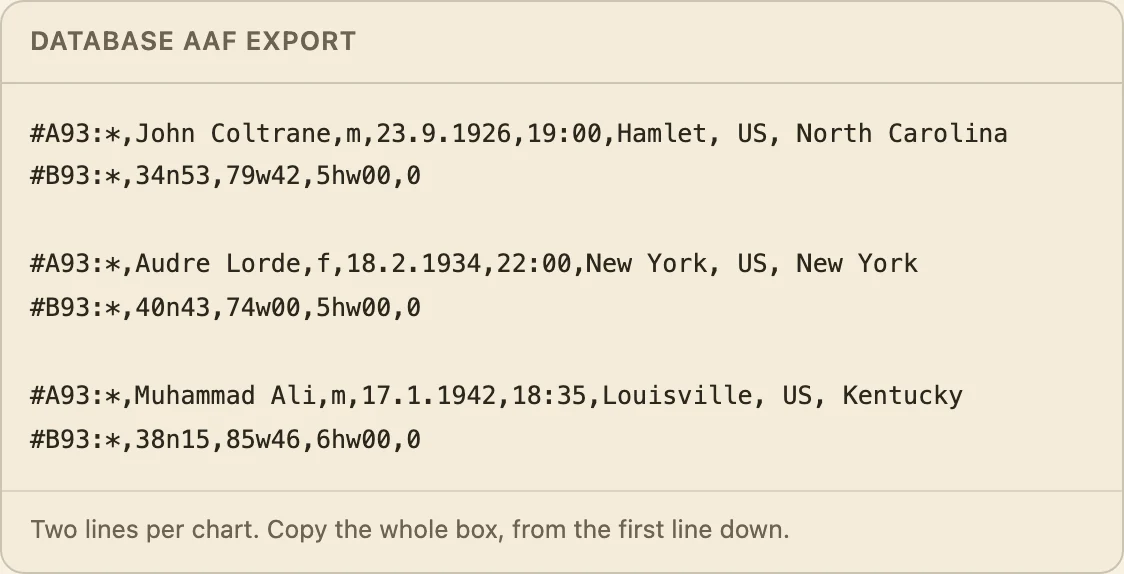
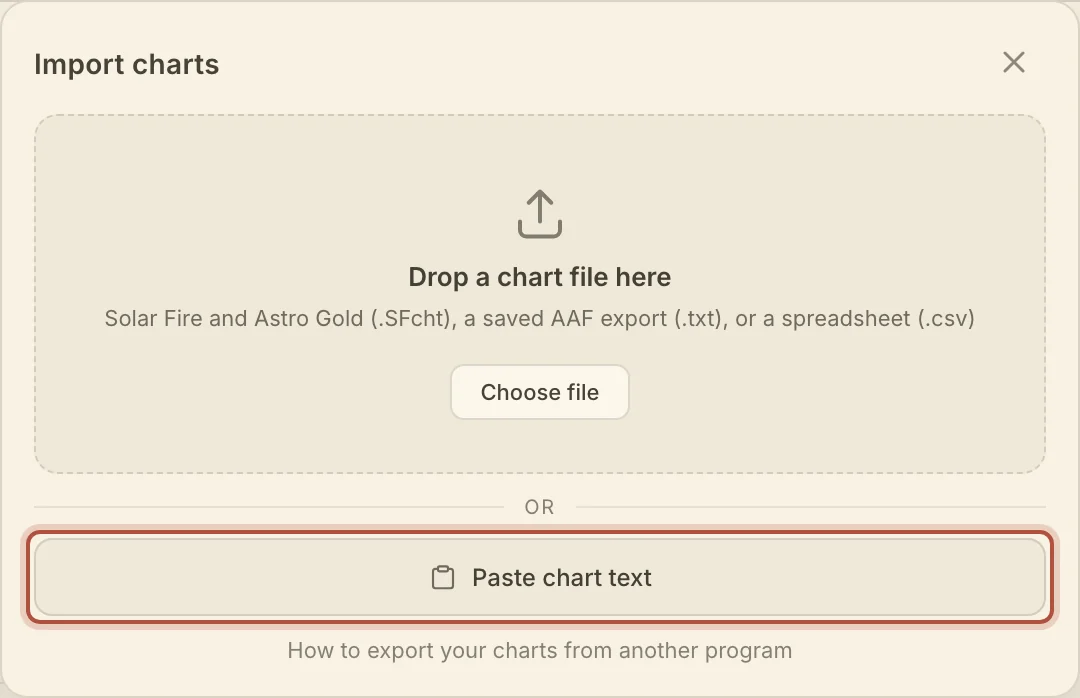
In Arcus, open the import window, click Paste chart text, and paste the export into the box. It then goes through the same review step as any other import.
Importing charts from a spreadsheet
Arcus can import any chart list kept as a spreadsheet, whichever program it came from. Export your chart list as a CSV file and import that. The columns can be in any order, under any names. Arcus reads the header row and guesses what each column holds, and you correct any column from the menu beside it.
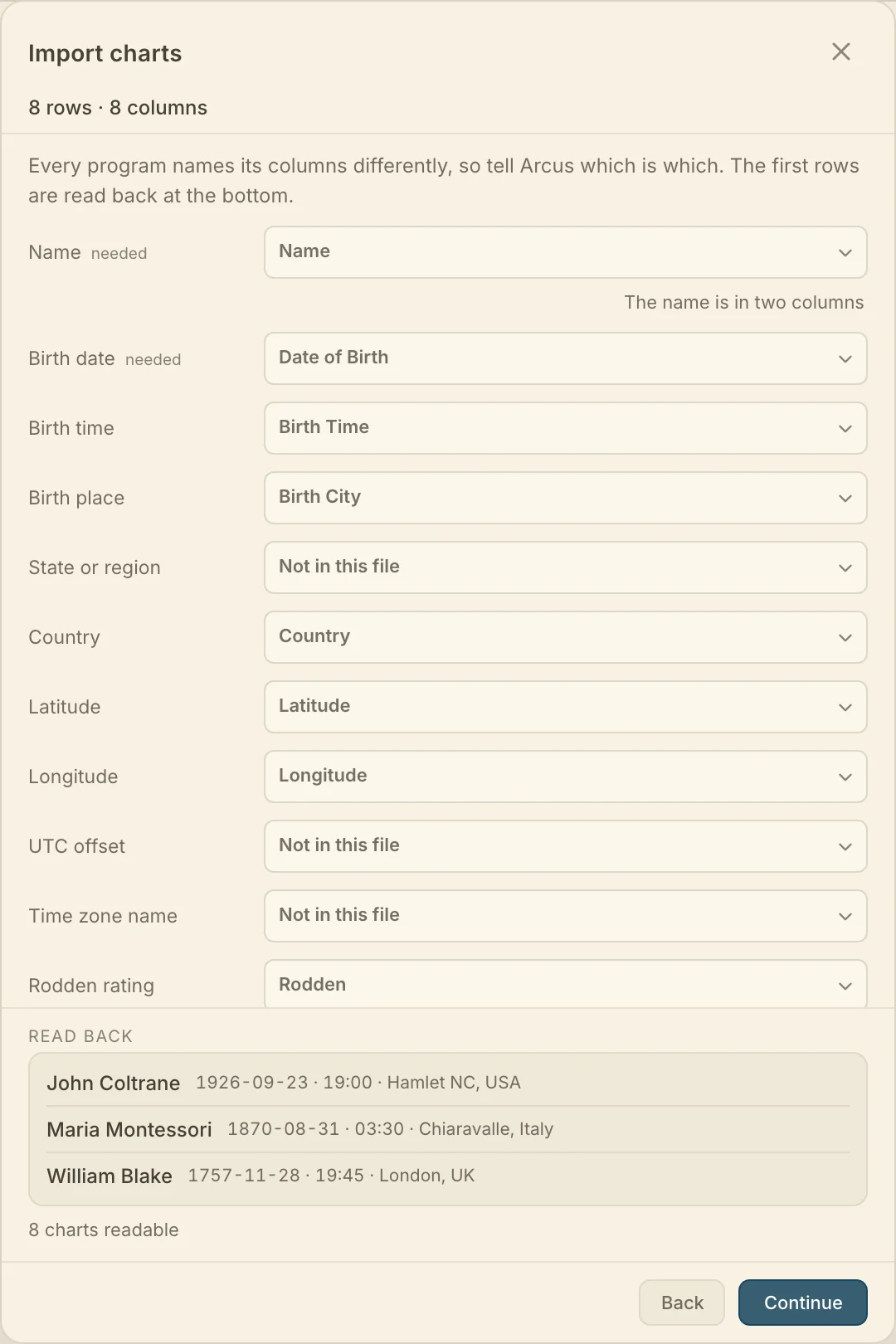
A row needs a name and a birth date. Latitude and longitude are the surest way in, and with no coordinates a place name lets Arcus look the place up at the review step. A file with a time zone but no place still imports, without houses. A Rodden rating carries across, and X or XX also marks the chart as time unknown, as does the kind of chart, natal, event or horary, when the file marks it.
Luna has no export of its own. Write to Luna's support address and ask for every chart you have saved as a CSV file, then import it as a spreadsheet. Charts you entered without a time arrive at exactly 12:00, so mark them time unknown once they are in.
What to check after an import
A few things in another program's file can be read more than one way, so look over these once the charts are in.
- Many programs write noon when the birth time is unknown. Arcus imports those charts as timed unless the file carries a Rodden rating of X or XX, so mark the rest yourself.
- A two-digit year, such as 1/1/34, is flagged in the list for you to settle the century.
- Whether the day or the month comes first is read from the whole column, with a control when the dates leave it open.
- A bare time zone number such as 5 is read as east of Greenwich, and a control flips it. 5W or 5E settles it.
- A row with no coordinates and no time zone is held out until you look the place up at the review step. See Troubleshooting.
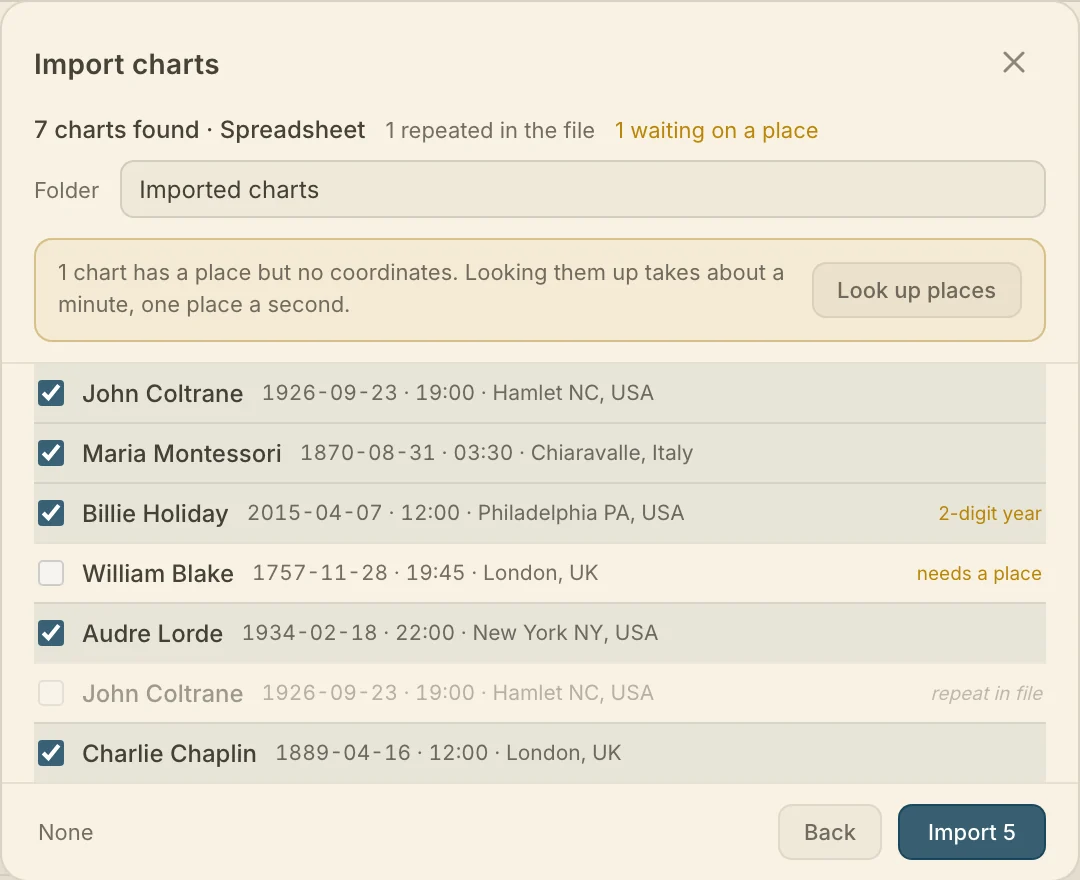
The birth data, the place, the kind of chart and a Rodden rating all come across, and Arcus casts every chart with its own ephemeris. Wheel settings, house systems and anything you wrote in the other program stay there. You can import the same file twice: charts already in your library are skipped, and anything you have edited since stays as you left it.
Taking your charts back out
You can take a full copy of everything you have in Arcus whenever you want it, as one file from Settings, to keep as a backup, move to another copy of Arcus, or open in another program.
- Click Settings in the top bar.

- Go to Account, above About at the foot of the list.
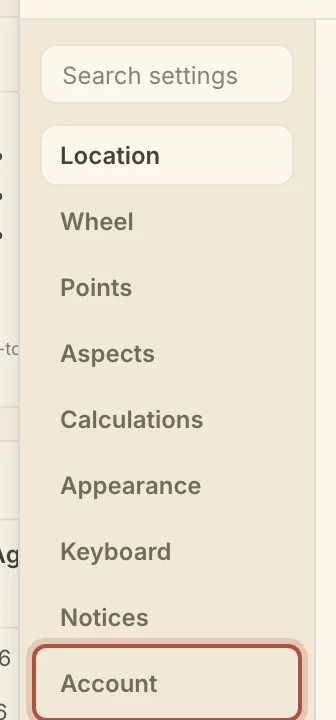
- Open Export your data.

- Click Download my data, and keep the window open while it runs.

The download is a .zip file. Open Start here.html inside it to read the whole library in any browser. Beside it are charts.csv, which Arcus reads back and any spreadsheet program opens, notes-and-events.csv, a notes folder with one text file per chart, and arcus-backup.json, the same contents in full, for reading back in.
Didn't answer it? Write to support@arcusastrology.com.