
In this section (4)
Notices
Notices watches the charts you choose and tells you when a transit comes into orb or a time-lord period turns over, so you do not have to open each chart to see what is coming.
The Notices bell
Notices, the bell near the right end of the top bar on a computer, watches the charts you choose, so you do not have to open each client's chart to see what is coming into orb. It needs an account.
For each chart it lists the time-lord periods turning over and the transits from your setup coming into orb. Stations, ingresses and lunations sit in their own group, In the sky, after the charts. The number on the bell counts what has come into orb or turned over since you last looked, and closing the panel clears the count.
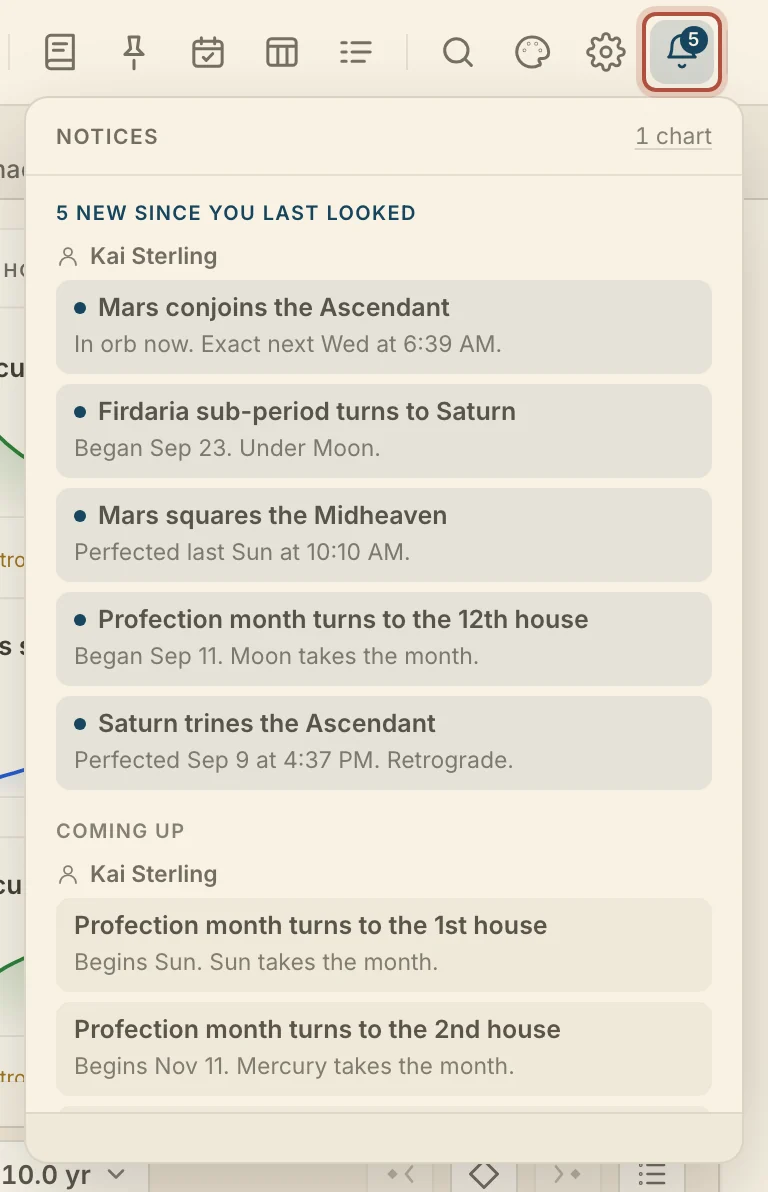
Click a row to open that chart at that moment. A row under In the sky takes the sky there. Choose charts, at the foot of the panel, opens the Notices settings.
Choosing which charts Notices watches
Notices watches only the charts on its list, and you choose which those are and which transits count. Open Settings, then Notices, where Charts lists every chart being watched. Your own chart is on it to start, marked you, and a watched chart needs a birth place.
- + Add a chart opens your saved charts. Pick one and click Watch this chart.
- × on a chart stops watching it.
- + Your chart puts your own chart back after you have taken it off.
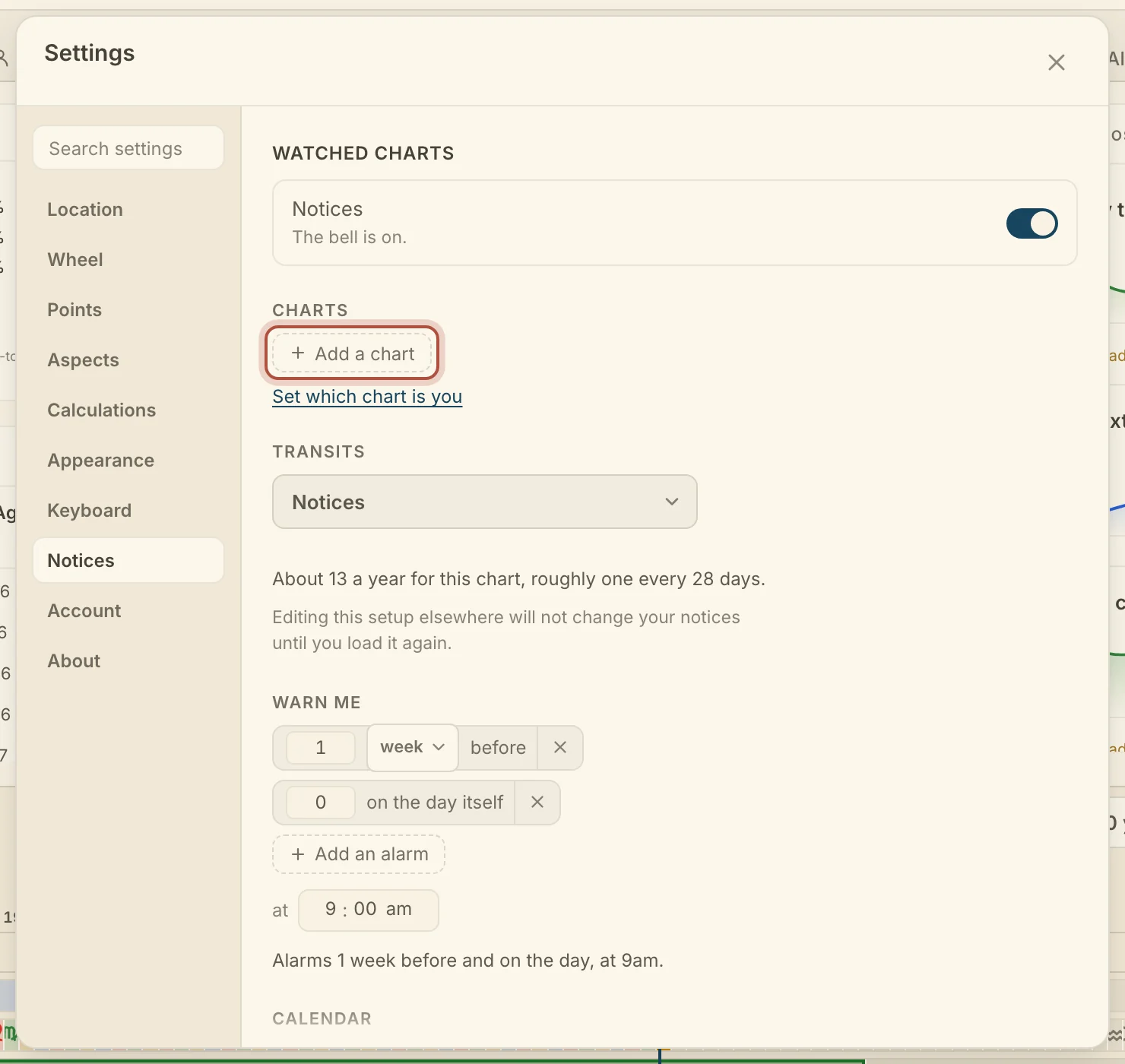
If you have not said which chart is yours, Set which chart is you opens your account settings.
Transits picks the saved setup Notices finds transits with, from the same setups the Graph uses, so you decide which planets and aspects it warns you about. The line underneath says roughly how many notices a year that setup gives for this chart. Reload the setup here after editing it on the Graph.
Turn off the Notices switch, at the top of the Notices settings, and the bell stops watching until you turn it back on.
Notice alarms on your calendar
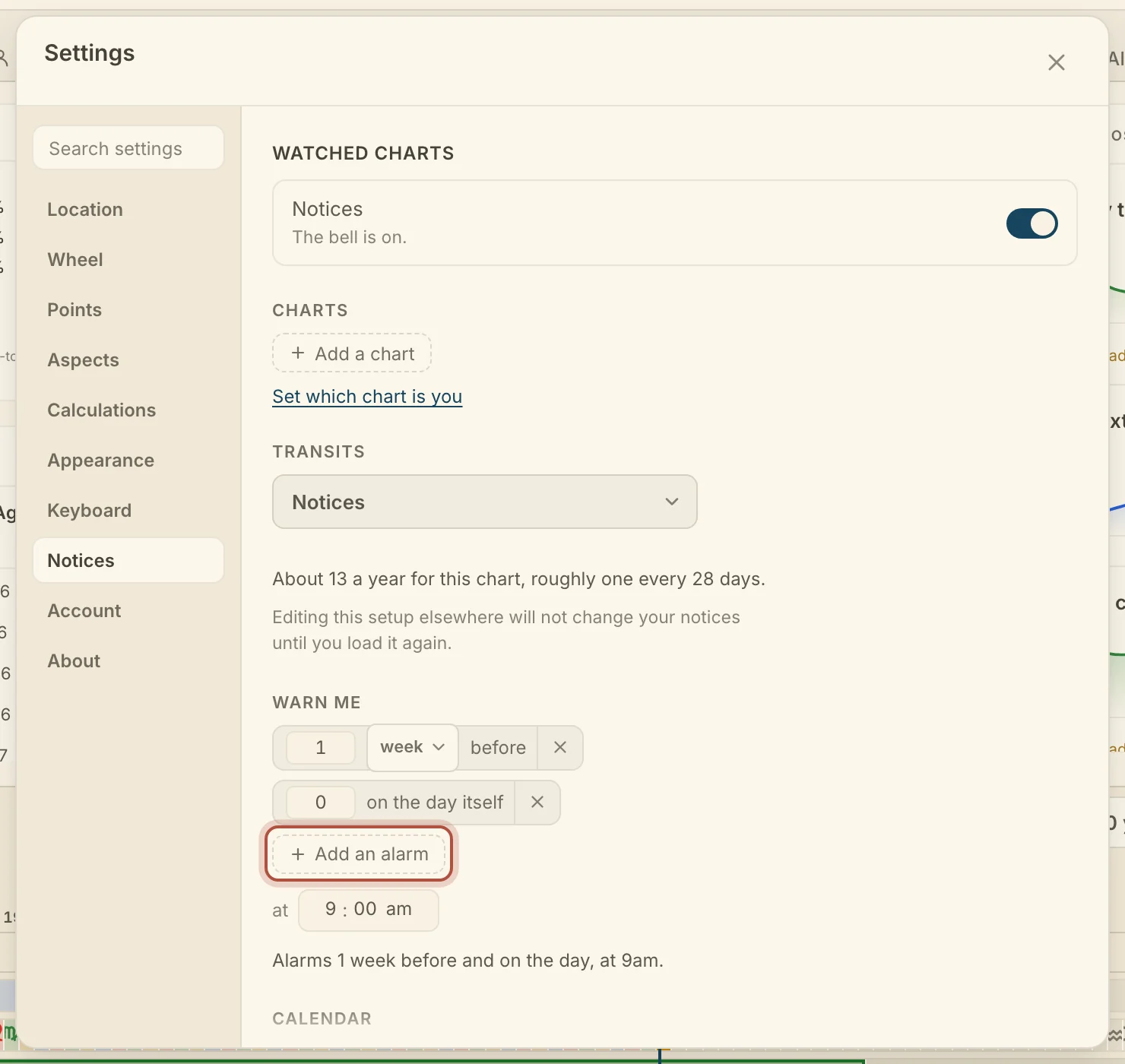
Warn me sets the alarms these dates carry when you put them on your calendar. Each alarm is a number and a unit before the date. Set the number to 0 for the day itself.
Arcus starts with a week before and on the day, at 9:00. Click + Add an alarm for another, or × to remove one. Type a time in the at field to move the hour.
Put these on your calendar, in the Calendar window, opens the Calendar to send them.
Didn't answer it? Write to support@arcusastrology.com.