
In this section (2)
The Earth map
Opening the Earth map
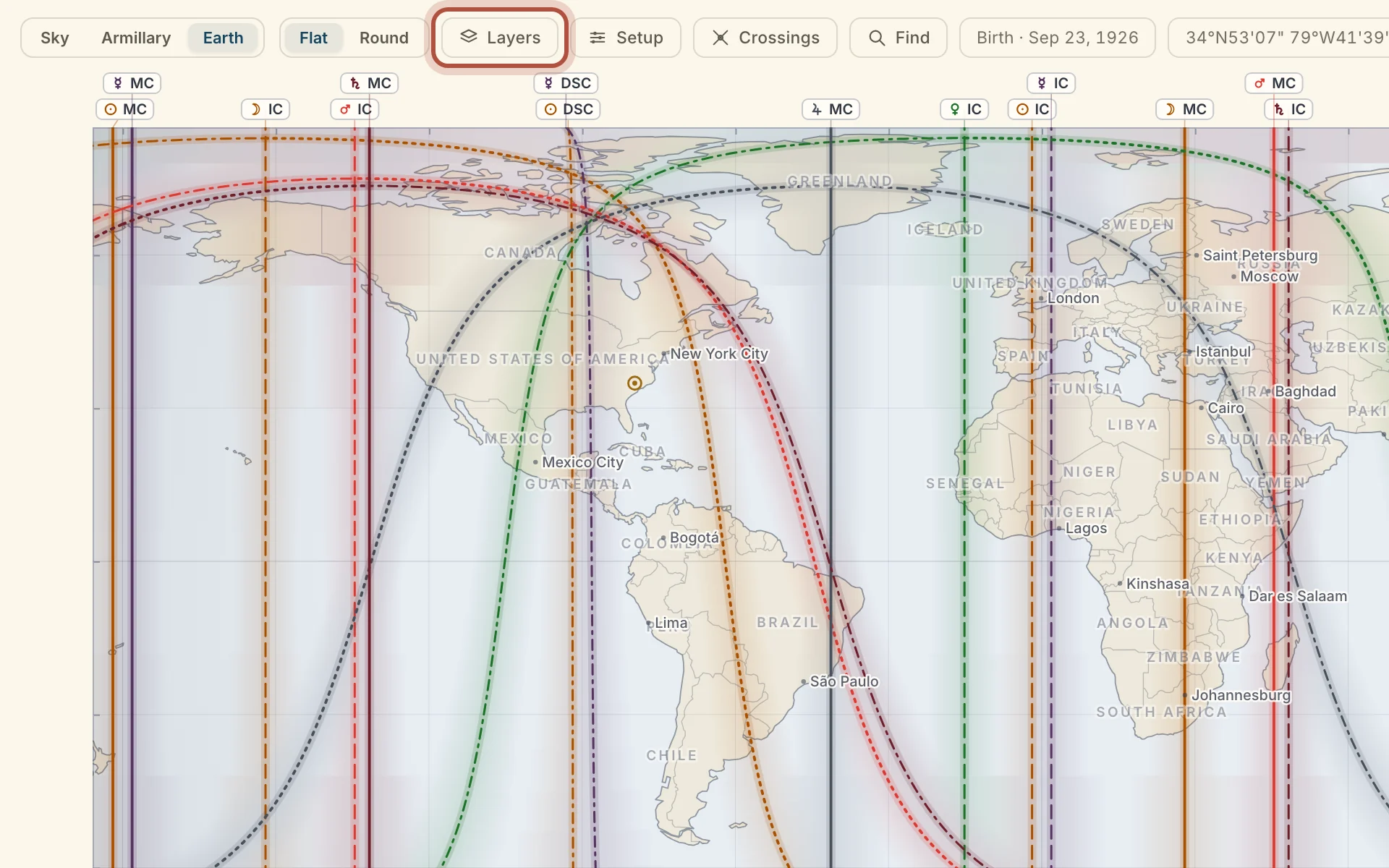
The Earth map is Arcus's astrocartography map, which draws a chart's planetary lines across the world so you can see which of them run near a place. To open it, click Earth in the Sphere view switch. The map draws the lines for the chart on the tab you are on. Natal and progressed lines need a birth time, as listed in Troubleshooting.
On a computer, the row along the top holds Flat and Round, then Layers, Setup, Crossings and Find.
The map works the same way on a phone, with its controls gathered up to fit the screen. Layers and Setup sit together under one Markings button, and the map is always flat. Crossings and Find sit beside Markings. Tap the map to drop a pin.
Layers on the Earth map
Layers chooses what the map draws: which charts, which bodies and angles, and the extra lines such as parans and local space. Open it from the row along the top.
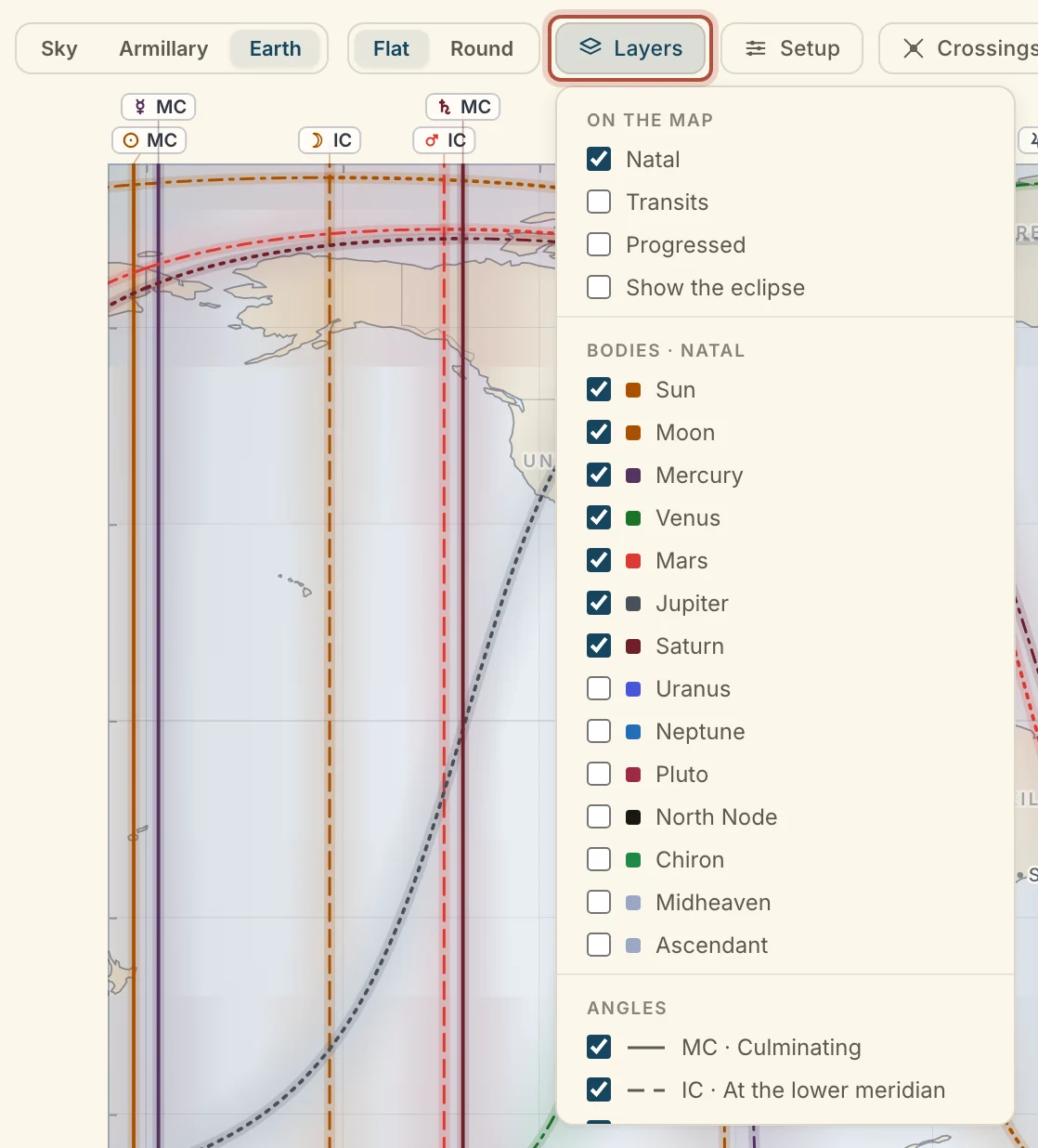
On the map lists the charts that can draw lines: Natal, Transits and Progressed. Tick each one you want. Progressed draws cyclocartography. Pick the rate under it, Secondary, Tertiary, Minor or Solar Arc, and under Angles how the progressed angles are found, where Follow Settings uses the method in Settings.
Show the eclipse lays down the eclipse nearest the moment on show, so you can see where its path falls against the lines. The arrows step to the eclipse before or after, and Both, Solar and Lunar choose which kind the arrows step through. Move the moment on the timeline and the eclipse moves with it.
Bodies picks which planets draw lines, with a tab of planets for each chart on the map. Angles picks which of the Midheaven, Imum Coeli, Ascendant and Descendant lines are drawn.
Parans adds paran lines beside the angle lines, for the planets and stars you choose. Show is Off, Every pairing, or one planet's pairings. Stars adds fixed stars to the parans: None, The four royal stars, The Behenian fifteen, First magnitude or Navigational. With Every pairing, star parans are listed when you click the map, and one planet's pairings draws them.
Local space draws the planets' bearings out from the birthplace. Tick From the birthplace, then choose Great circle or One bearing.
Earth map setup
Setup holds the map's own settings, which cover how the map looks, how its lines are found, and how far from a line still counts. Open Setup in the row along the top.
- Ground is Ink, Earth or Terrain.
- Method is In mundo (the body itself on the horizon) or Zodiacal (the body's degree on the horizon).
- Zone of influence sets how far from a line still counts.
- Distance is Miles or Kilometres.
- Show turns on Zone shading, Line names, Place names and Graticule.
Finding a line or a place on the Earth map
Find takes you straight to a line, a crossing or a place, so you do not have to hunt for it across the map. Click Find, or press /, and type a planet and an angle ("venus mc"), a crossing, or a town, state or country. A place or a crossing takes the map there and drops a pin. A line is shown on its own, with its name in a tag at the top, and clicking the tag brings the other lines back.
Crossings lists the places where two lines cross, nearest first, measured from the birthplace or from your pin if you have dropped one. Each row gives the two lines, the nearest town and the distance. Click a row to go there and drop a pin.
Clicking the Earth map
Dropping a pin shows you which lines run near a spot and what the chart looks like relocated there. Click the map to drop a pin, and a card opens with the lines near that spot and how far away each one is. Lines inside the zone of influence are marked out from the rest.
When crossings or parans fall near the pin, the card lists them under Crossings near here or Parans at this latitude.
Relocated gives the angles at the pin and the house each body falls in there. Clear removes the pin.
Didn't answer it? Write to support@arcusastrology.com.