
In this section (4)
The life timeline
The timeline under the wheel, and under the Graph, lays out the whole life from the birth, with a lane for each time lord technique you turn on and a lane for your own events. Moving the playhead is on moving through time, and the band the Graph draws on it is on the span of the Graph.
The rows on the life timeline
Each lane on the life timeline shows one time lord technique as a row of periods across the life, so you can see which periods the playhead falls in. A lane follows the settings on its technique's card, so the releaser, bounds or method you choose there is what the lane draws.
- Profections: the sign of each year, with a row of months once you zoom in far enough.
- Decennials: the general periods, with the sub-periods under them.
- Firdaria: the major periods, with the sub-periods under them.
- Circumambulation: the distributor through the bounds, and a curve that rises to each partner the directed Ascendant meets.
- Primary directions: a curve that peaks at each perfection. When one falls near one of your saved events, hovering it names the event.
- Zodiacal releasing: the levels in force, with the deeper levels as you zoom in. The loosing of the bond is marked.
- Ascensional times: the busy years on one row.
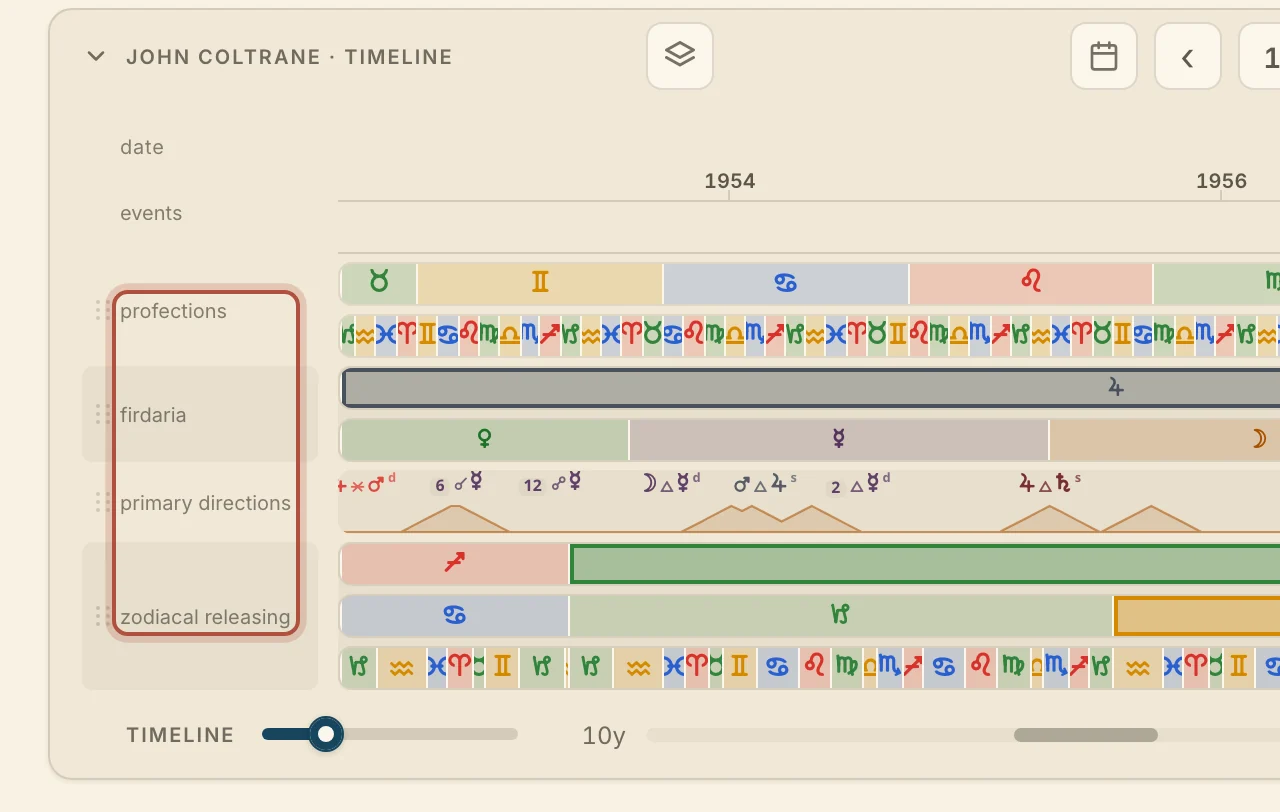
Profections and zodiacal releasing are colored by sign, the rest by planet. The period the playhead is in has an outline, and periods still to come are greyed.
Click a ribbon on any lane to move the playhead there and open the technique's card on that period.
Turning life timeline lanes on and off
You choose which techniques appear on the timeline, so it shows only the ones you use. Every lane starts off. Click Techniques shown on the timeline, at the left of the timeline bar, and check the lanes you want. Which lanes are on, and their order, apply to every chart. Decennials, firdaria, primary directions and zodiacal releasing need a birth time, so their lanes stay off on a chart without one.
Hover a lane's label to bring out its ×, which takes the lane off. With two or more lanes showing, drag the dotted handle beside a label to move the lane up or down. Click a label to open that technique's card.
The events lane on the life timeline
The events lane shows the dated events you have saved on a chart, so you can see them alongside the time lord periods and step between them. Each event is a ◇ on the lane above the techniques. Click one to open it. Double-click an empty spot on the lane to add an event on that date, or click Add an event at the playhead, at the right of the timeline bar, to drop a mark on the date you are on. Notes and events, beside it, opens the list for that chart, and the arrows either side of those two step to the previous or next mark. Stepping by key is on stepping between your events and returns, and the records themselves are in notes and events.
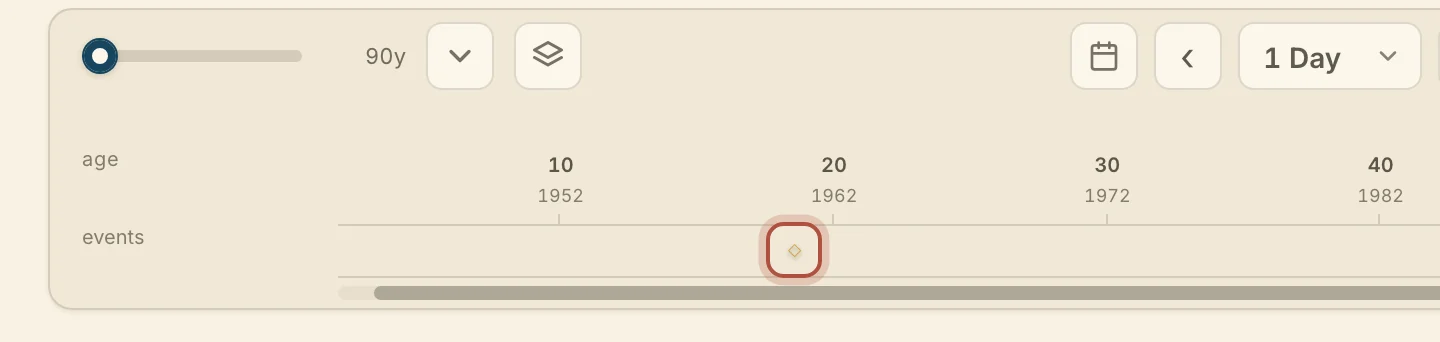
When events fall outside the stretch on screen, a count at that edge says how many. Click it to jump to the nearest.
Panning and zooming the life timeline
You can pan along the life timeline to look at any stretch of years, and zoom in from decades down to a single day. The rail under the lanes shows which part of the life is on screen. Drag it to move through the years, or click along it to jump. With the timeline focused, the arrow keys pan, Shift with an arrow pans nearly a screenful, and Home and End go to the two ends.
Timeline, the slider under the technique names at the left, zooms from decades down to a single day. Pinch, or hold ⌘ or Ctrl and scroll, to zoom around the playhead. Scrolling without a key pans. The quick ranges at the right of the transport, from 7 Days to 3 Years, set the span around the playhead.
Making the life timeline taller
You can make the timeline taller to give the lanes more room, or hide it to give the wheel more space.
Drag the top edge of the timeline to resize it. Click the edge, or pull it down past its lowest point, to hide it. The arrow at the left of the bar, beside the chart's name, hides it too. Hidden, it leaves a bar with the chart's name. Click the bar to bring it back. The backslash key hides both rails and the timeline together, and a key for the timeline alone can be set in Settings.
Tap the handle at the top of the timeline, or pull it down, to hide it. Tap or pull up to show it again. At most three lanes show at once.
Didn't answer it? Write to support@arcusastrology.com.