
In this section (3)
Research projects
Opening research projects
A research project gathers notes and events from across your charts onto one board, so you can collect the cases for an idea in one place and sort them. Start a project for each question you want to study. Research projects need an account.
Click Projects in the top bar. Research projects is also in the account menu and in ⌘K.
Tap Tools in the bottom bar, then Projects. You can also press ⌘K and type "Research projects".
Click + New project at the foot of the list, type a name and click Create. The pencil renames a project and the bin deletes it. Open a project to see its board. Click its title to rename it, and the line under the title to write what the project is for.
Set active, at the top of a project, keeps it within easy reach while you work on it: it comes first, marked Active, in every Pin to project and Add to project menu. More than one project can be active. Clear active takes it off.
The research project board
The board is where a project's records are laid out, filed into the groups you make. Records you have not filed yet sit under Unfiled, with your groups above. Search this project narrows the board. Click a group's arrow to fold it away.
Click a record to open it in the pane on the right.
Tap a record to open it. All records goes back to the board.
When you open a record, you can read and edit it without leaving the project. The bar at the top names its chart and shows its Rodden rating. The dropdown files it in a group. Open on the wheel opens the chart on that record. Under the bar is the record in the usual editor, and an edit here changes the note on its chart. Unpin, beside Notable, takes the record off the project and leaves the note on its chart.
Adding records to a research project
A project's records are notes and events from your charts, and you can pin them from the board itself or from elsewhere in Arcus as you work. On the board, click Find notes and events to search everything you have written, on every chart. All, Events and Notes narrow it. Click a record to pin it.
You can also pin from elsewhere.
- Pin to project in the Saved Charts preview writes a new note on that chart and files it.
- Add to project in Notes and events files the open record, or every ticked one.
- Pin to project in the event editor files the record when you save. New project… in the same menu makes a project.
New records land in Unfiled.
Groups and claims on a project board
Groups let you sort a project's records, and each group can carry the claim those records support. Click Add a group to start a group. Open it to write its claim in What are you claiming here?, and anything else under Group notes.
Drag a record onto a group to file it, or choose the group from the dropdown at the top of the record. Beside each group is its count and how many of its records rest on AA to B birth data.
Remove group moves its records back to Unfiled.
To hand a project to a client or keep a printed copy, export it as a PDF from Giving a chart to a client.
Searching your charts by what is in them
Research search finds the charts in your library by what is in them, so you can pull out every chart that shares a placement or an aspect and pin the cases to a project. It runs in Saved Charts, in the folder you are in, and the list keeps only the charts that meet every condition.
Click + Add a search condition under the search box (on a phone, Add condition at the foot of the list). Choose a tab, Placement, Dignity, Aspect, Stars, Chart or Details, then what to ask, the planet or point and the values. Values are multiple choice, so Mars in Aries, Leo or Sagittarius is one condition. Set is or not, then click Add condition.
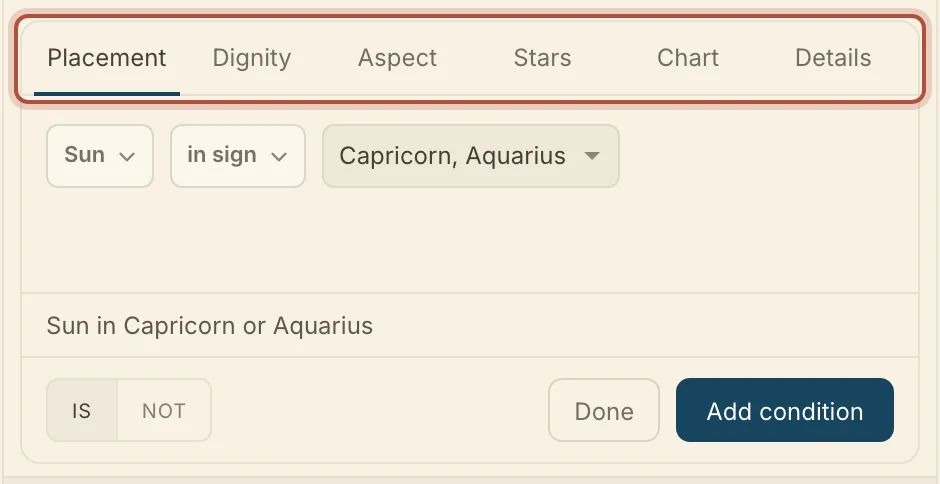
Placement covers sign, house, element, modality, angularity, degree, nakshatra and motion. Dignity covers the dignities from Domicile to Peregrine and the ruler of a decan or bound. Aspect takes an aspect by degree, with its own orb, or whole sign witnessing. Stars finds a point conjunct a fixed star. Chart asks about sect, Moon phase and birth near an eclipse, and Details searches the birth data. A house lord works anywhere a planet does, so "Lord of the 10th in the 7th" is one condition.
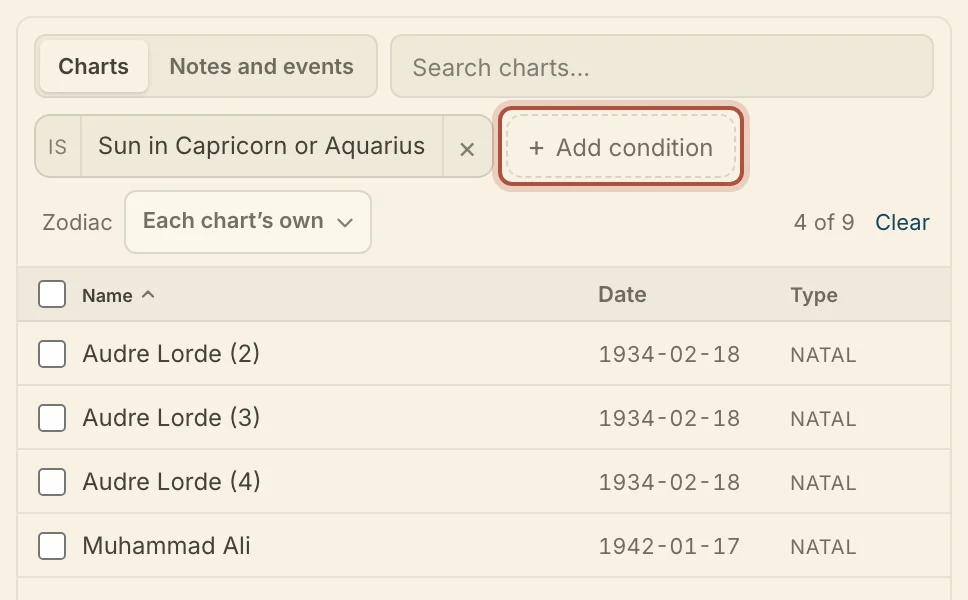
Each condition is a pill above the list. Click it to edit it, is or not at its start to flip it, and × to remove it. When a condition needs houses or signs, Houses and Zodiac dropdowns appear beside the pills, where Each chart's own reads every chart as it was cast and a chosen system reads the whole library in it. Charts without a birth time or place are left out of conditions that need them, as listed in Troubleshooting.
Didn't answer it? Write to support@arcusastrology.com.