
In this section (4)
Moving through time
Every wheel, card and timeline lane reads one moment, the playhead. Move it and the chart, the transits and the time lords follow. The playhead carries across the Chart, the Graph and the Sphere.
Returning to now
However far you have moved the playhead, Arcus keeps a quick way back to the present close at hand. The moment control sits in the top bar, beside the place you observe from. On the live sky at the present it reads Now, with a lit dot. Move the playhead on a sky tab and it reads Return to now. On a saved chart, the Graph or the Dashboard it reads Sky now, which opens the live sky. Press ⌘. from anywhere to jump to the live sky.
Now, on the timeline under the wheel, puts the playhead back on the present on the chart you are on.
The clock button at the right end of the timeline transport keeps the chart updating with the present moment. Click it again to stop.
Sky now is in the bottom bar. Now is at the right of the timeline bar.
Scrubbing to a date
Scrubbing is dragging the playhead through time and watching the chart change as you go. Drag along the life timeline under the wheel, or drag the playhead on the Graph. The wheel and the cards follow as you drag. The playhead pulls toward the moments worth landing on, such as the present, the birth, the start of a period, your own events and each exact aspect.
Drag the playhead line to scrub. One finger anywhere else slides the timeline, and a tap places the playhead.
Typing an exact moment
When you know the exact moment you want, you can type it straight in.
Click the calendar button at the left of the transport. The Moment you're viewing field is the playhead. Drag a part of it, such as the day or the hour, to scrub that part, or click it and type. From and To, under it, set how much time the timeline or the Graph shows, with the age at each end.
On the Graph, the calendar button in the bar opens the same box.
Stepping by a time interval
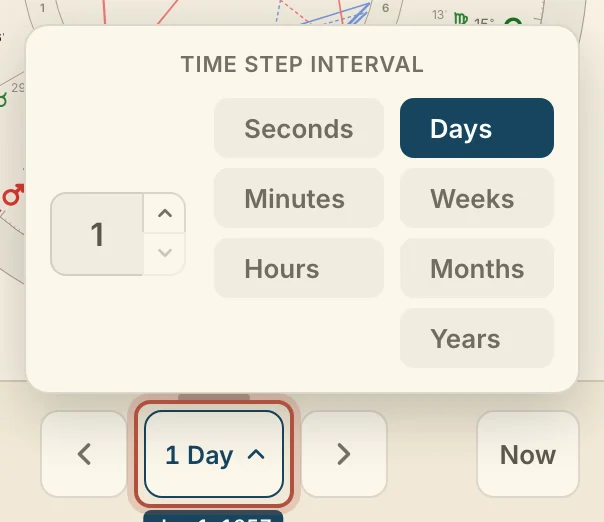
Stepping moves the playhead by a fixed amount each time, such as a day or a month, so you can watch the chart change in even steps. ‹ and › on the transport step the playhead back and forward. The button between them is the step, such as 1 Day. Click it for Time Step Interval, then type an amount and choose a unit, from seconds to years.
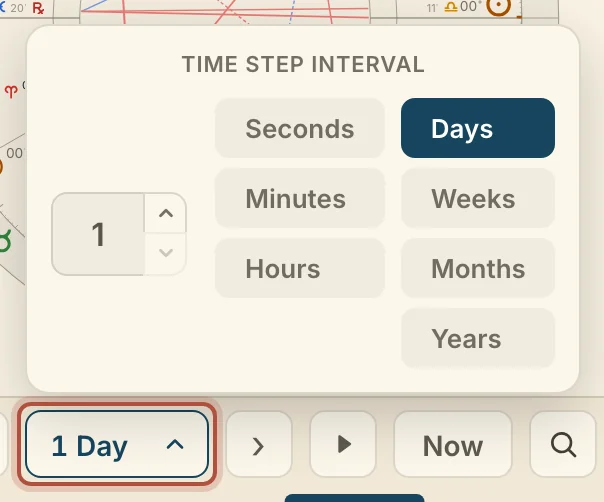
The play button beside › keeps stepping until you click it again.
The step arrows and the interval sit in the middle of the timeline bar.
Jumping to the next event
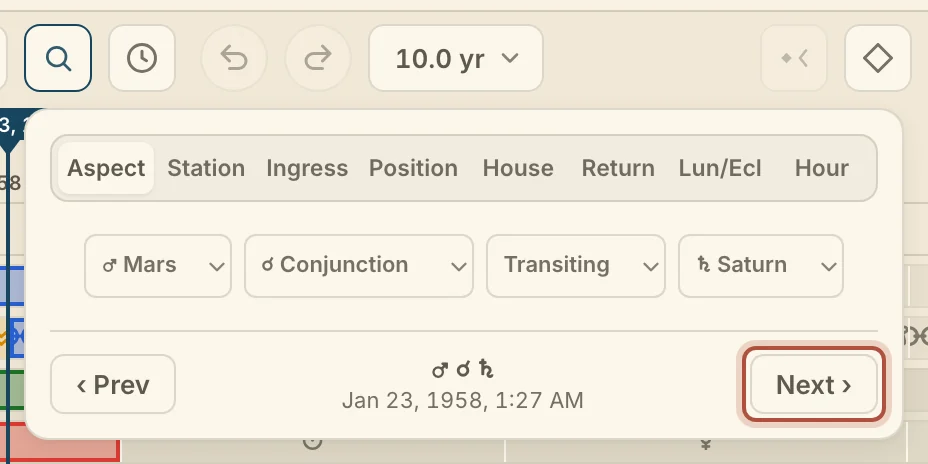
The event finder moves the playhead to the exact moment of the next aspect, station, ingress, return or lunation.
Click the magnifying glass on the transport, to the right of Now. Pick a tab and set the search. Next › finds the first match after the playhead and ‹ Previous the first before it. Enter and Shift+Enter do the same.
Tap Tools in the bottom bar, then Find in the sky. Pick an event and set the search. After a step the sheet drops to a strip with the result, ‹ Previous and Next ›. Tap or drag the strip to bring the search back.
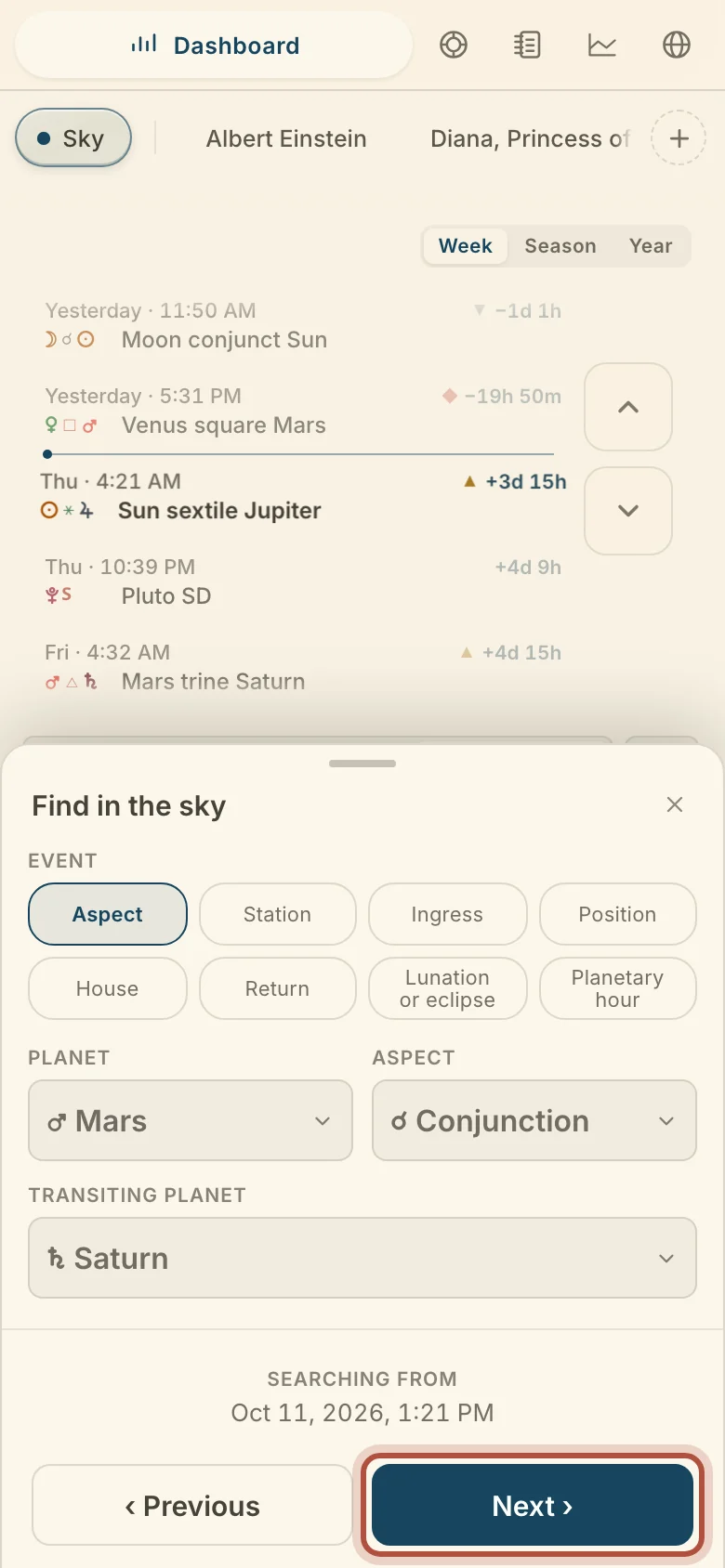
Each search runs from the playhead, and each Next finds the one after. The finder remembers your last search. Each tab looks for one kind of event: Aspect (to another transiting planet, or to a natal point with a chart open), Station, Ingress, Position (a degree and minute of a sign), House (by whole sign houses, so it needs a chart with a birth time), Return (needs a chart), Lunation or eclipse, and Hour, the start of a planetary hour, which needs a place.
Stepping between your events and returns
Two keys let you hop between the dated events you have saved on a chart, so you can look at the sky at each one in turn. [ and ] step the playhead to the previous and next of your own events on the chart. They match the arrows either side of Add an event at the playhead on the timeline bar. On a phone, the arrows sit at either end of the events lane.
When the wheel holds a cast chart such as a solar or lunar return, [ and ] step that cast to its previous or next occurrence, and the playhead goes with it. The ‹ › on the cast's chip, under its name on the wheel, do the same. Both keys can be changed in Settings. See keyboard shortcuts.
The place you observe from
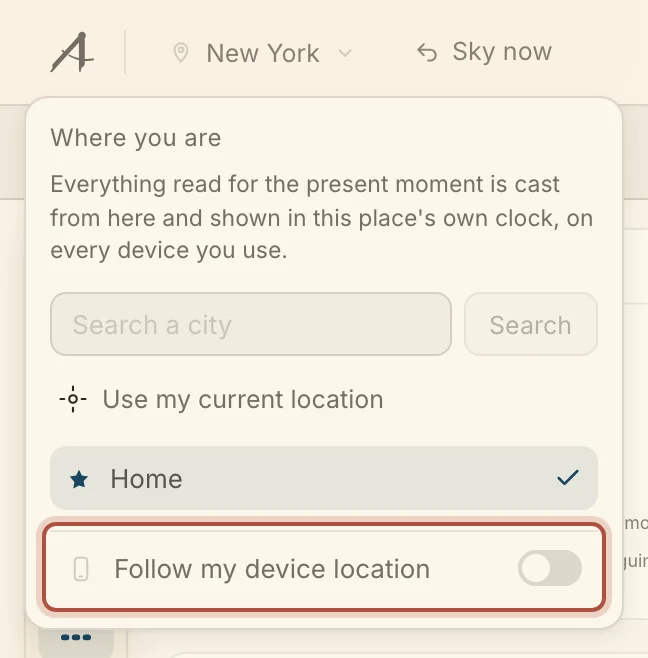
The live sky is cast for the place you observe from and shown on its clock. The place is the same on every device you use, and it is separate from any chart, which keeps its own place. Your home town is set in Settings, under Location.
Click the place at the left of the top bar. Search a city, or pick your home or a saved place. Follow my device location moves it with you. Away from home, the place turns amber and offers Return home, and Return home on sets a date to switch back.
Tap Settings, then Location.
Didn't answer it? Write to support@arcusastrology.com.