
In this section (4)
The Graph
The Graph lays transits, progressions and their markers along a span of dates, so you can see when each one builds, peaks and fades. On a chart tab it plots transits to that chart; on a sky tab, the planets against each other. Signed out, the Graph shows the week ahead.
The curves on the Graph
The Graph draws each transit as a curve, so you can see how long it lasts and when it is exact. Each row is a transiting planet, marked by its glyph in the left margin. Its curves rise as an aspect comes into orb, peak when it is exact and fall as it separates, so a planet that perfects three times across a retrograde draws three peaks. A row can also carry sign changes, house ingresses, retrograde cycles, eclipses and the Moon's void of course, and progressions draw as their own rows, marked SP, all set in the Graph jobs. Click a glyph in the margin to open its job, and hover it for a × that removes the row. Calendar grid, under Settings, then Appearance, turns off the month and week lines behind the curves.
Hover a peak's label for its date, with each body's degree and sign at perfection. A house entry names the house system it was counted in, such as 12th house (Placidus). Click the label to pin that card and pick out its pair of planets, and click anywhere else to let it go. On a chart the pinned card offers Add Event, which saves that perfection as one of the chart's events.
Moving through time on the Graph
The playhead is the line across the Graph, and it is the moment the Chart and the Sphere show too. Drag it to scrub, and it pulls toward exact aspects and your event flags. Click empty space to put the playhead there, or click the strip of dates along the bottom to land on the nearest day, hour, month or year. Stepping, playing forward and the event finder work as on the Chart, on moving through time.
Drag anywhere else, or scroll, to slide the dates along; ← and → do the same. Jump to playhead brings the playhead back into view when it has gone off the edge.

The Graph's own row, with Configurations, Jump to playhead, the range, the dates and the zoom, sits above the timeline bar. One finger slides the dates along.
The span of the Graph
The life timeline sits under the Graph, with the same lanes and events it has under the wheel, and the stretch of dates the Graph is plotting is drawn on it as a band. Drag the band to move the Graph along the life, and drag either end to widen or narrow it, from a day to three years. The tab at its foot reads the span, such as Graph · 6mo, and the dates while you hold it, and the Graph redraws when you let go. The timeline pans and zooms as it always does, and clicking a date on it moves the playhead, so the Graph and the lanes read one moment.
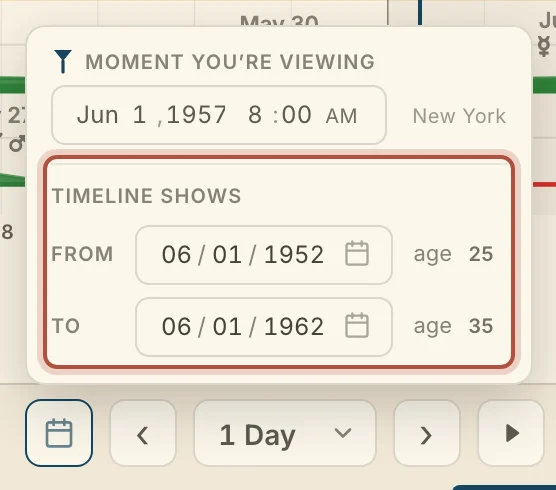
Graph, the slider at the left of the bar, sets how much time the Graph shows, and pinching or holding Ctrl and scrolling over the curves does the same. For an exact span, open the calendar button and set From and To under Timeline shows. The span is saved with the chart. The quick ranges on the bar, from 7 Days to 3 Years, and the Timeline slider under the technique names set the timeline's own view, not the Graph's.
Events on the Graph
On a chart, your saved events show as flags on the Graph, so you can see which transits were in play around each one. Click a flag to open the event. A sky tab has no events.
The buttons at the right of the timeline bar are Previous event, Add an event at the playhead, Next event, and Notes and events. [ and ] also step between events.
Add an event marker, beside Now, adds an event at the playhead.
Opening the Graph jobs
Jobs and setups decide what the Graph plots. A job is one row on the Graph, a transiting or progressed planet with the points it aims at, and a setup is a saved set of jobs.
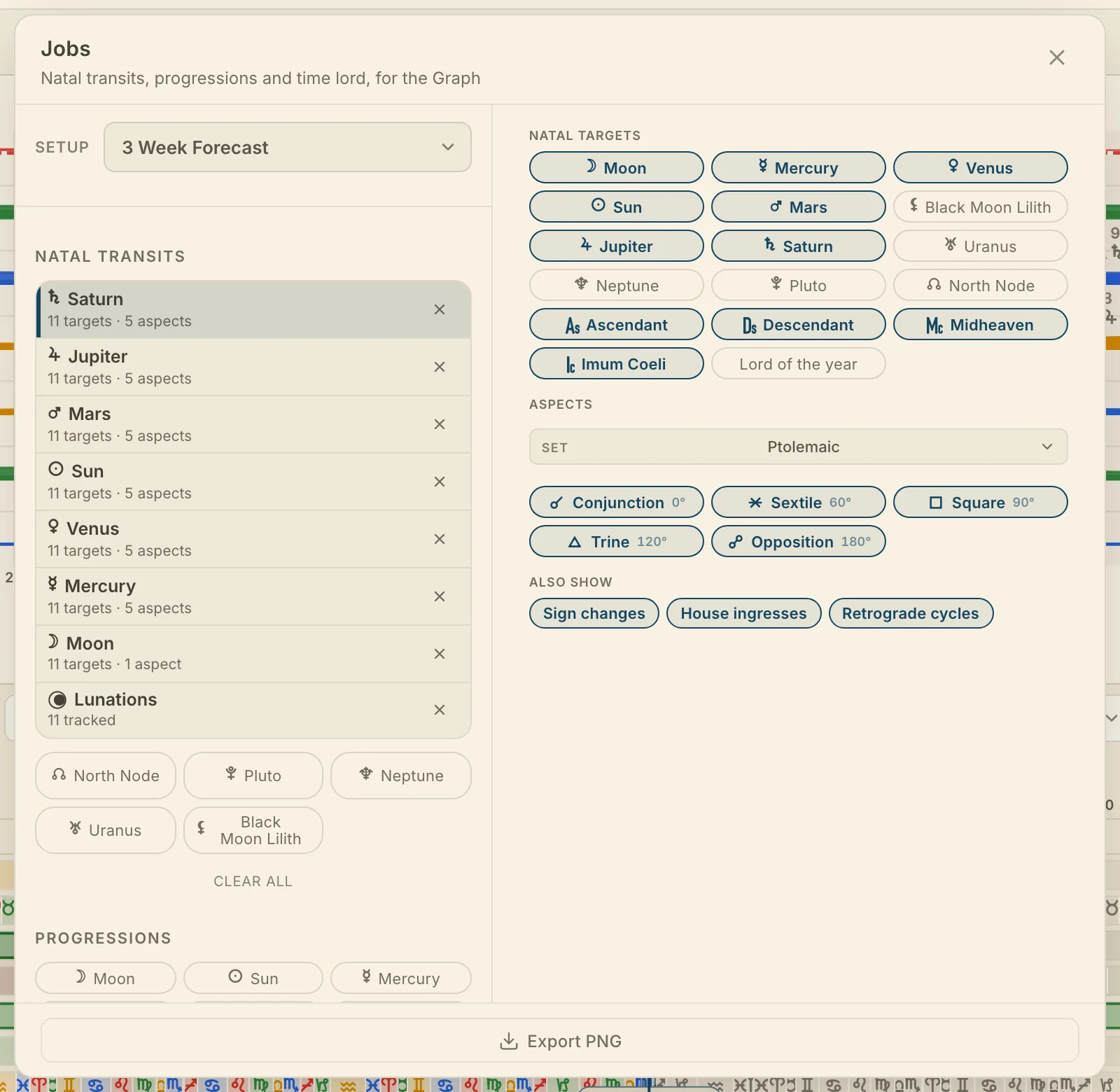
Click Jobs on the timeline bar, beside Techniques. The setup picker is at the top left, the jobs under it and the job you select on the right. On a chart the window holds Natal transits, Progressions and Time lord; on a sky tab, the sky transits. Export PNG, at the foot, saves the Graph as an image.
Tap Configurations, the first button on the Graph bar. Tap a job to open it, and Configurations at the top to go back.
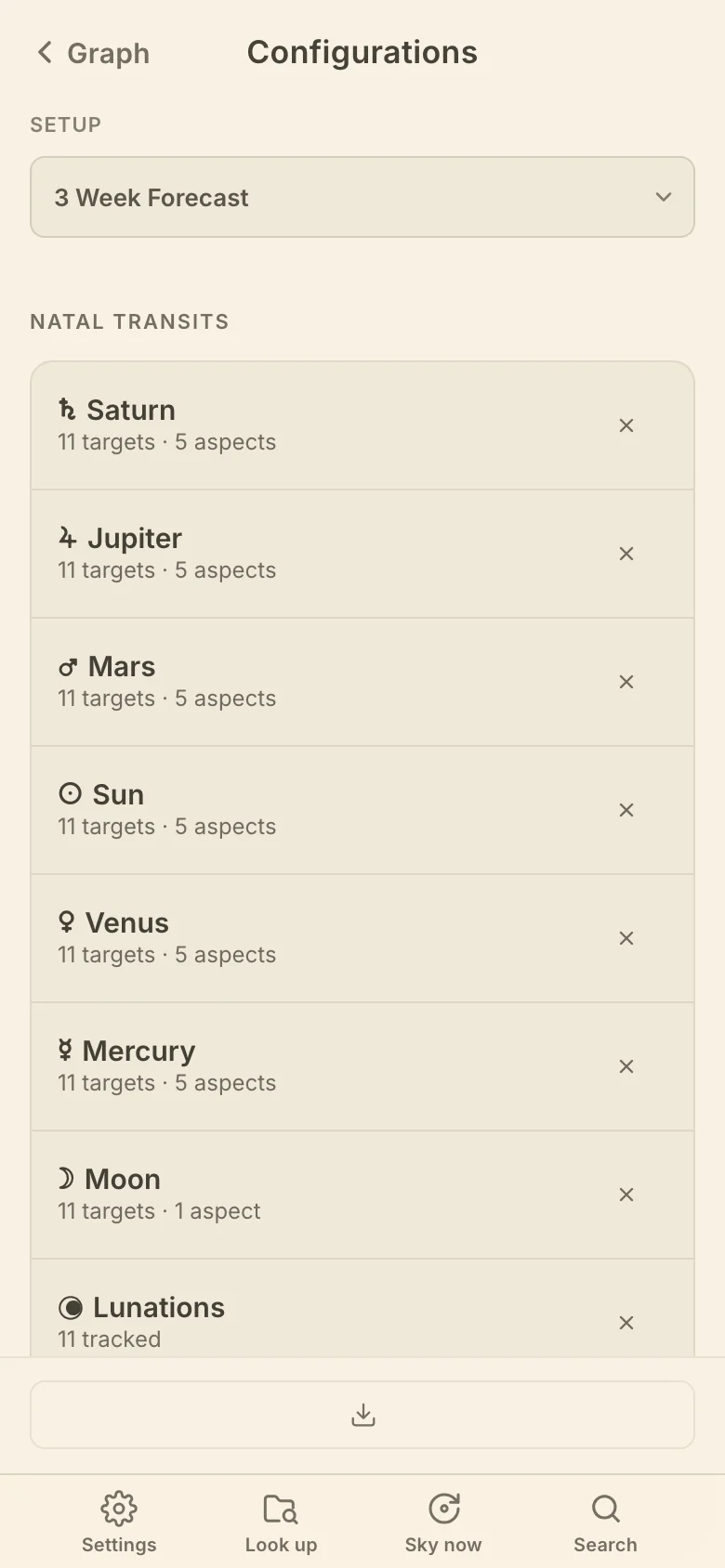
Under Track a transiting planet, click a planet's chip to add it as a job. On a chart it aims at every natal point with the five Ptolemaic aspects; on a sky tab, at every slower planet with your default aspect set, with sign changes and retrograde cycles. The Lunations chip adds New and Full Moons, and on a chart Track near natal chooses which natal points it watches. The × on a job's row removes it, and Clear all removes every job.
Graph job options
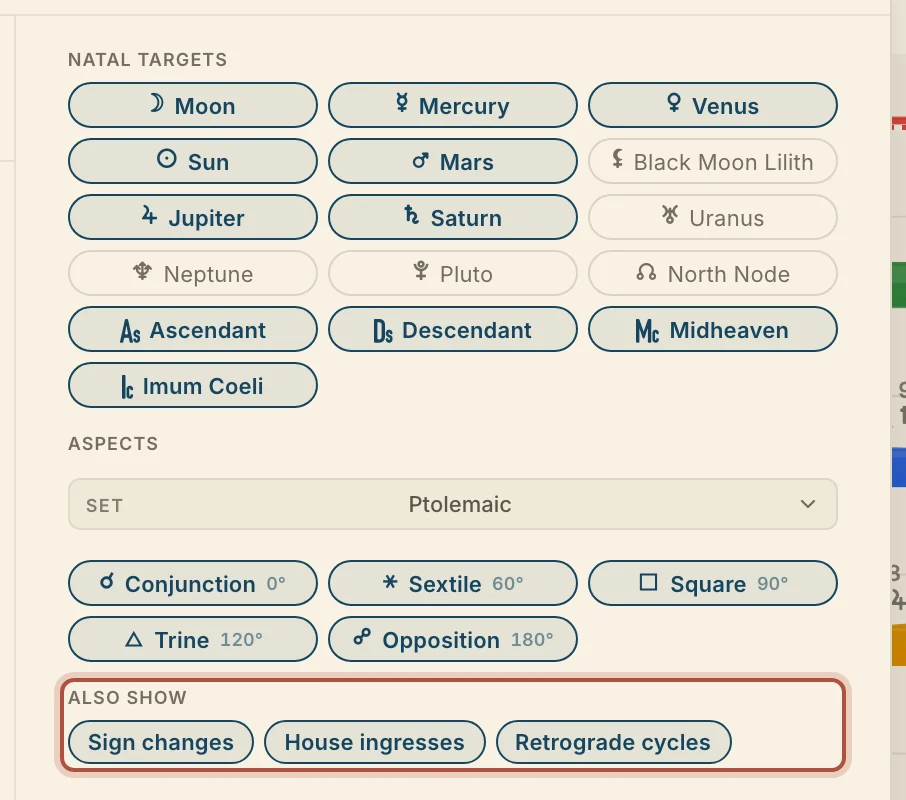
Each job has options that choose what it aims at and what else it marks on its row. Select a job to set them. Natal targets (Targets on a sky tab) are the points it aims at. Lord of the year, among them on a chart, aims the job at the lord of the year, whoever holds it in each year, and the job's row says so; the built-in setup Time Lord Transits is made of these jobs. Aspects picks a named aspect set, then the aspects in it as chips. Also show adds Sign changes, House ingresses, Retrograde cycles and, for the Moon, Void of course, read by the void of course settings; on a sky tab the North Node also offers Eclipses.
On a chart, Track a progressed planet, under Progressions, adds the Moon through Saturn, each aimed at Natal targets and Progressed targets and able to show sign changes. Under Time lord, Highlight time lord transits makes the transits of the lord of the year stand out, and Profect from sets where the profections start.
Graph setups
A setup saves a set of jobs under a name, so you can switch the Graph between the views you use without building them again. The setup picker shows the setup the Graph is plotting, and reads Custom (unsaved) once you change a job. Save as… saves the current jobs as a new setup, and Update followed by the setup's name writes your changes back into it. Pick a setup from the list to load it; the Default badge marks the one the Graph opens on. A chart's picker lists natal setups and a sky tab's lists sky setups. Right-click a setup, long-press it on a phone, or click its ⋯, for Set as default and Clear default, Rename…, Update with current jobs and Delete….
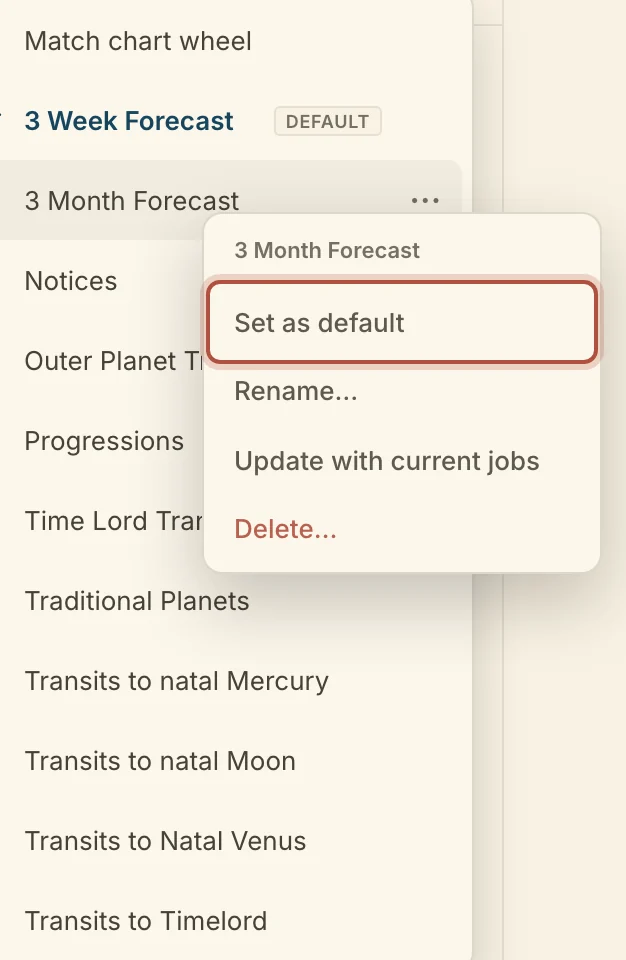
Match chart wheel, the first row of a chart's picker, makes the Graph plot whatever the wheel shows, with its points and its aspect set, and follow the wheel as you change it. Editing a job or loading a setup stops the match, and Set as default on it makes every chart's Graph open matched to its wheel. The Dashboard Transits card, Notices and Calendar and lists each read one of these setups too, and Edit setups in Jobs… there opens this window.
Didn't answer it? Write to support@arcusastrology.com.