
In this section (4)
Getting around
Arcus has four modes, each a different way of working with the same chart and moment, and you switch between Dashboard, Chart, Graph and Sphere with the buttons at the top of the window. The Arcus mark at the far left also goes to the Dashboard. The chart and the moment you are on carry across every mode.
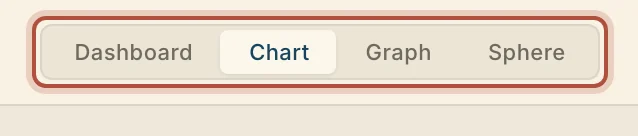
The Chart is the wheel, with the techniques in rails either side of it and the life timeline under it. The Dashboard reads the current sky, on its own or against a chart from Your Orbit. The Graph lays transits, progressions and time lord periods out along the dates. The Sphere is the real sky in 3D, the armillary sphere for primary directions, and the Earth map.
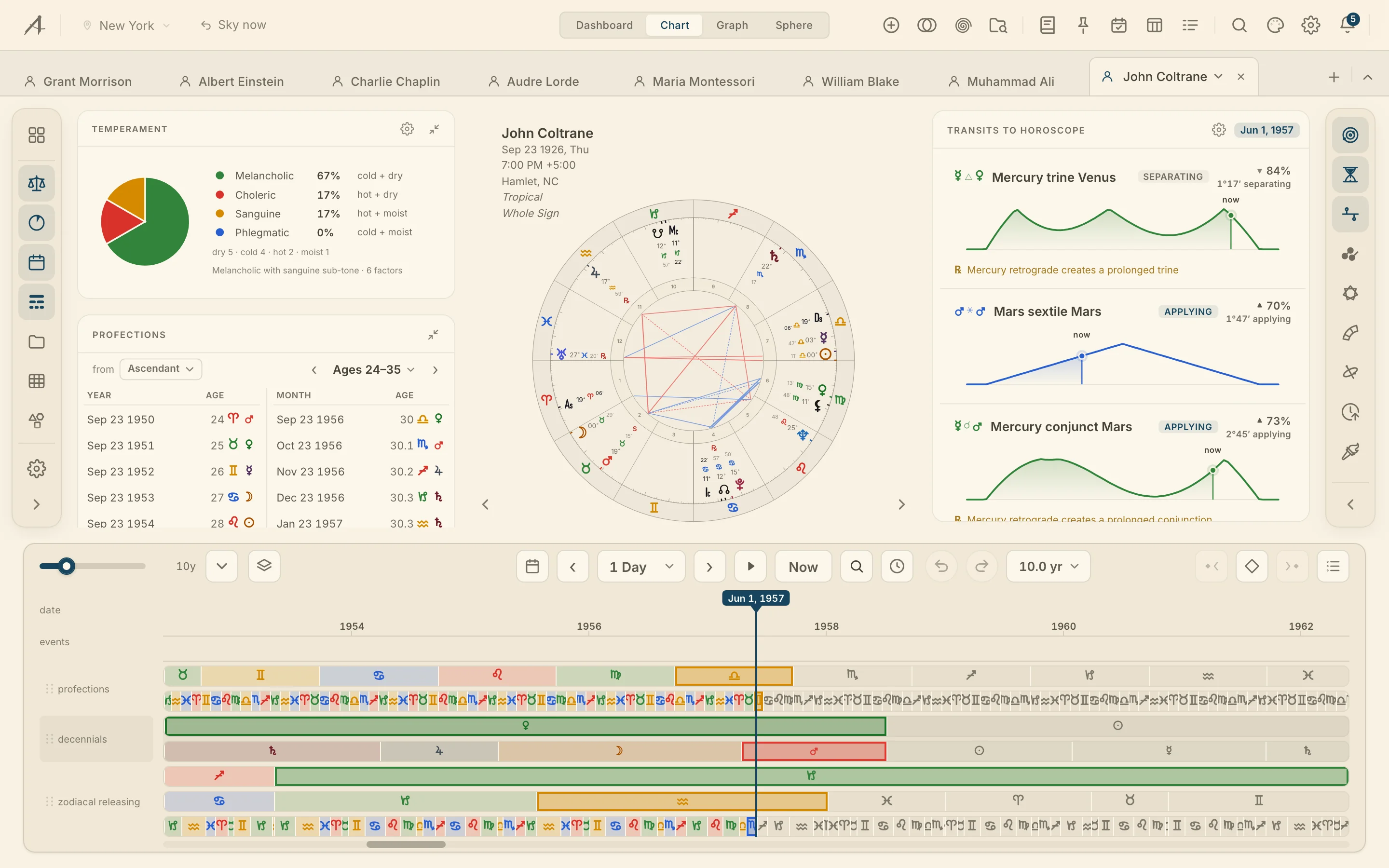
Signed out, only the Dashboard opens. A phone has a fifth mode, Research, and its own layout, on Arcus on a phone.
The top bar
On a computer, the top bar runs across the top of the window and keeps the place and moment Arcus is reading from in view, with the tools at the other end. The left end holds the place you are observing from and the moment you are on, which everything read for the present is cast from. The moment control reads Now on the live sky, Return to now once you have moved away from the present, and Sky now on any other chart. Both are on moving through time.
The chevron at the right end of the tab strip hides the mode switcher and the tools, for more room for the wheel, and clicking it again brings them back. While the bar is hidden the moment control sits on the tab strip, and a key for this can be set under Top bar in Keyboard settings.
The tools in the top bar
On a computer, the right end of the top bar holds a button for each tool that opens over the chart, so you can reach any of them without leaving the chart you are on. The icons run in this order: New, Cast, Diagrams, Open, Meanings, Projects, Elect, Ephemeris, Calendar and lists, Search, Skin, Settings, the Notices bell and your account, and you hover one for its name. New starts a new chart, Cast builds a chart from the chart you are on, Diagrams opens the Diagrams menu and Open is your saved charts. Search, ⌘K, looks through charts, tags, transits, time lords, techniques and commands, and ⌘↩ on a name that is not in your charts starts a new chart under it. The five research tools each have a chapter of their own. When a new version of Arcus is ready, Update available appears in the bar.

Workspace tabs
Arcus has workspace tabs, so you can keep several charts open at once and move between them without losing your place. Each open chart gets its own tab in the strip under the mode switcher, and the same tabs follow you to the Graph and the Sphere; the Dashboard has none.

On a computer, click + at the end of the strip to open another, from A new chart, A saved chart, The sky right now, or the lists under Your Orbit, Favorites and Recently used. Close a tab with its × or a middle-click; the last tab stays, and ⌘⇧T reopens the tab you closed last. Drag a tab sideways to reorder the strip. A star marks a favorite. Click the tab you are on for its chart menu, and drag a tab onto a wheel to add its chart there, on tabs, rings and wheels.
Technique rails
On a computer, the technique rails to the left and right of the wheel are where you open the card for each technique and read it beside the chart. Click a name to open its card and click it again to close it. Drag a row to the other rail to move it. Show names widens a rail so the labels sit beside the icons, and Collapse to icons puts it back.
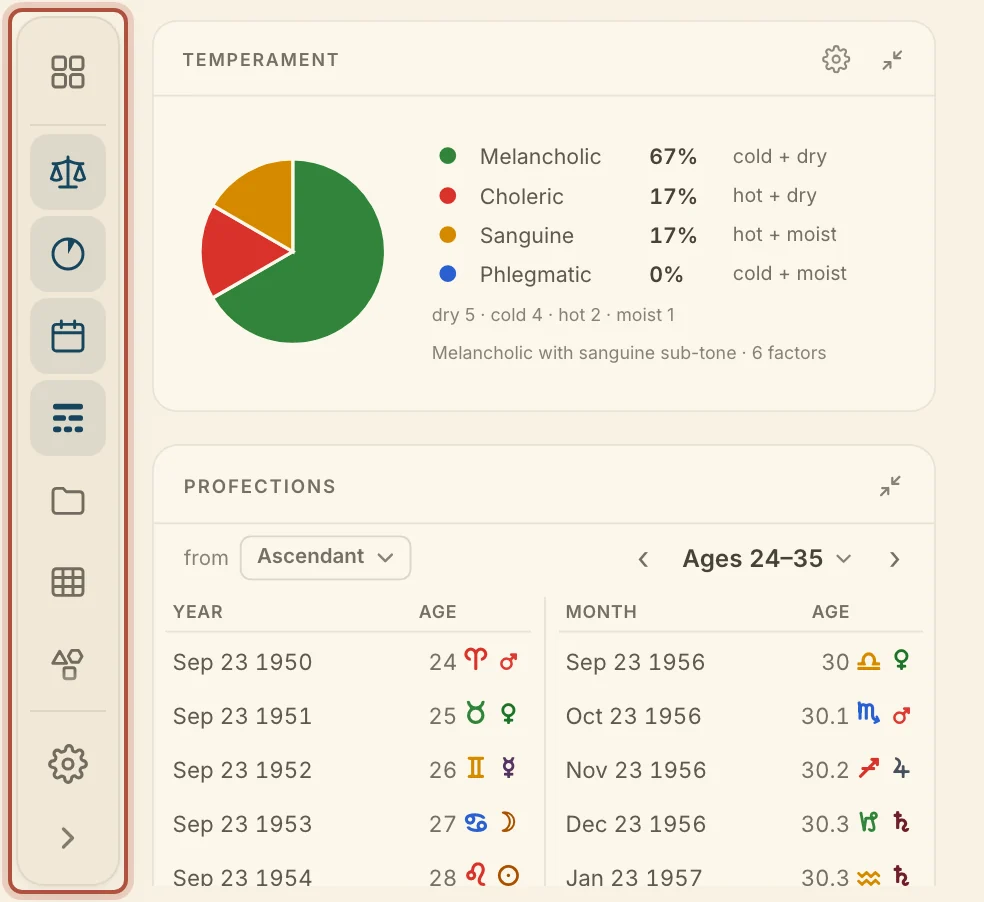
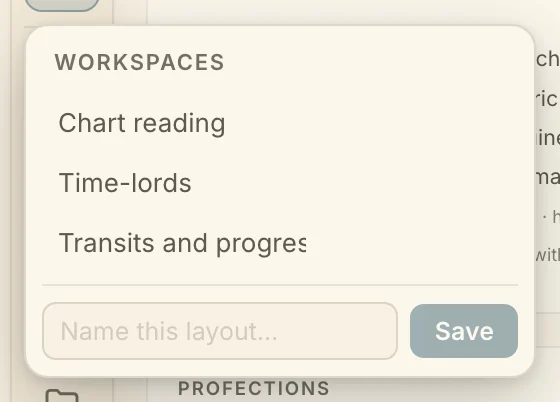
Workspaces, at the top of the left rail, saves the arrangement of rails and open cards and switches between saved ones. Press \ to hide both rails and the timeline together, and again to bring them back.
Choosing which techniques appear
You choose which techniques Arcus shows, so the ones you never use stay out of the way. On a computer, the gear at the foot of the left rail opens Techniques, the list of every technique the rails can show. Uncheck one to take its row off the rail and check it to put the row back. Find a technique narrows the list as you type, and Show all and Hide all switch the whole list at once.
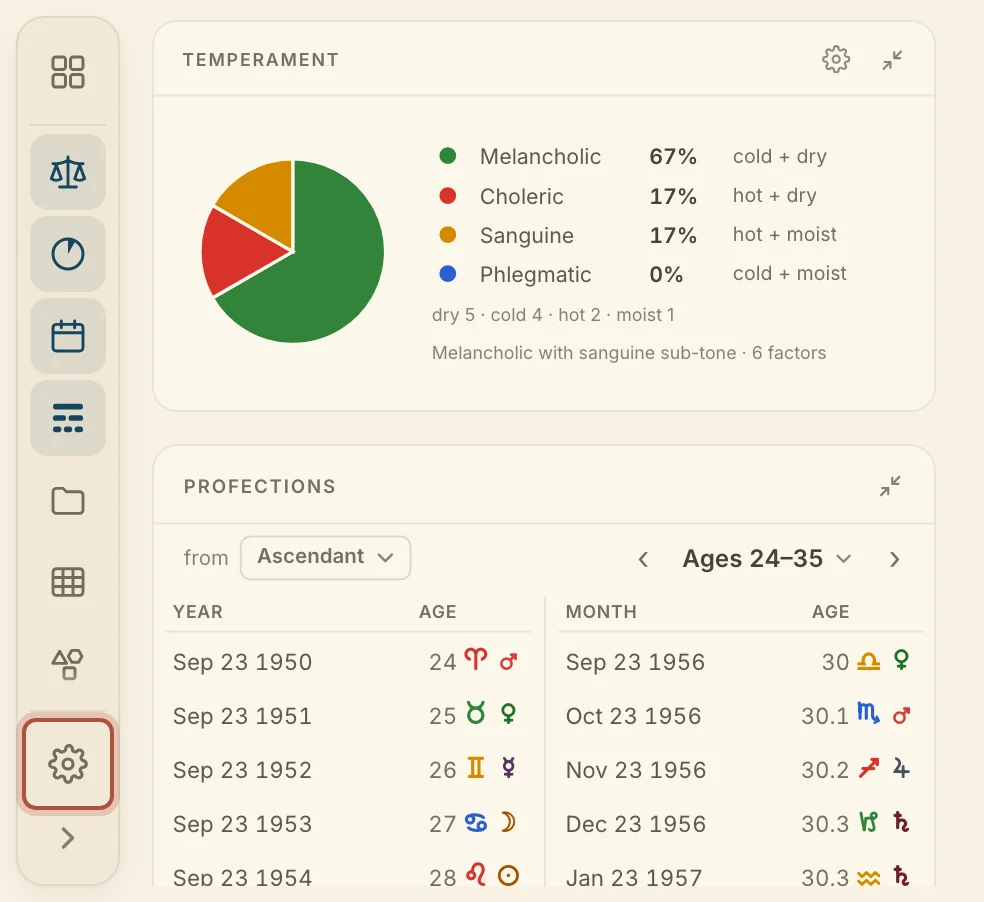
Many techniques also have settings of their own, which change how they are worked out or shown. A technique with settings shows a gear on its card; the gear flips the card to its settings and Done flips it back. What each setting does is on that technique's page. On a phone, the same list is on choosing techniques on a phone.
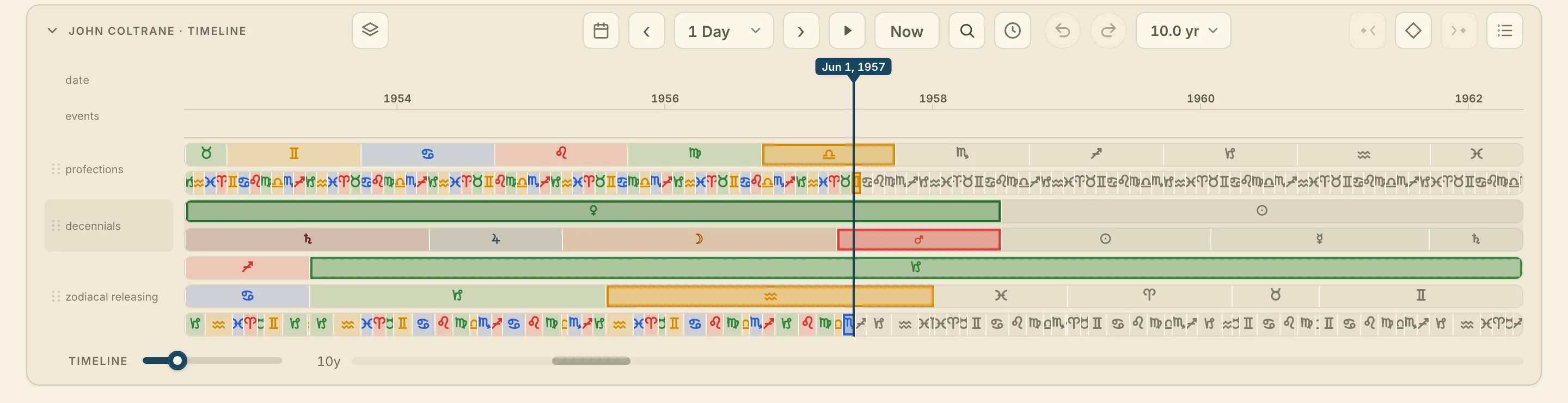
The timeline bar
On a computer, the timeline bar under the wheel, and under the Graph, lays the time lord techniques out across the life and carries the controls for moving the chart through time. Drag the board to scrub to a date, and use the transport along the bar to step by an interval, type a moment, find the next event or return to now. Techniques shown on the timeline, at the left of the bar, chooses the lanes, and Add an event at the playhead and Notes and events, at the right, work the events lane. The lanes and the events are on the life timeline, and the transport is on moving through time. On the Graph the same bar also carries Jobs and the Graph's own slider, on the Graph.
Didn't answer it? Write to support@arcusastrology.com.