
In this section (3)
Saved charts
Opening the Saved Charts window
Saved Charts is your library, where every chart you save is kept, so you can find one, preview it and open it in a tab.
Click Open in the top bar. The list is on the left and a preview of the chosen chart on the right. Click a row to preview it. Double-click it, or click Select, to open it. Click Name, Date or Type above the list to sort by it.
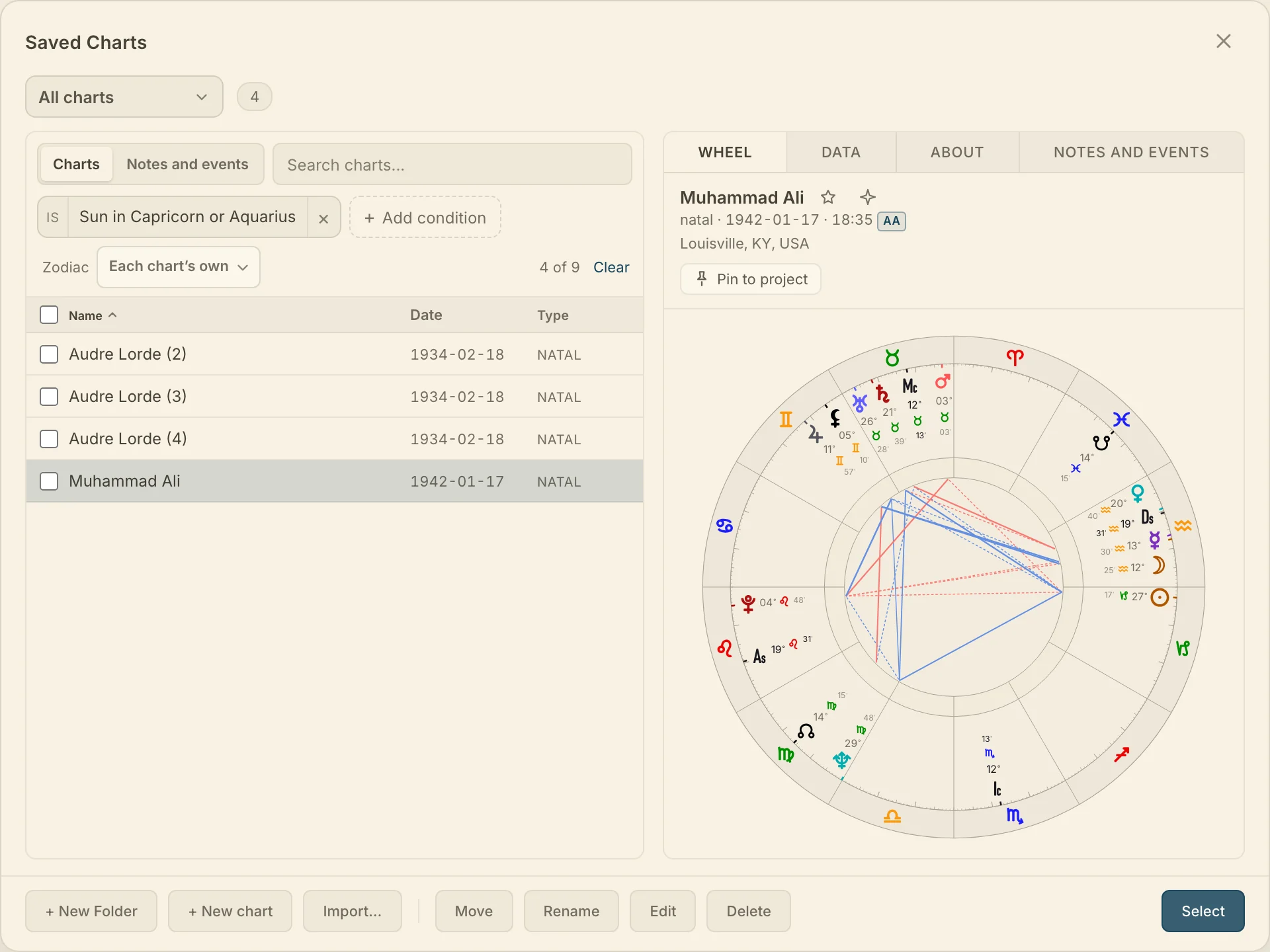
Tap Look up in the bottom bar. Tap a chart to preview it, then tap Select to open it. Charts at the top goes back to the list, and Workspace closes the window.
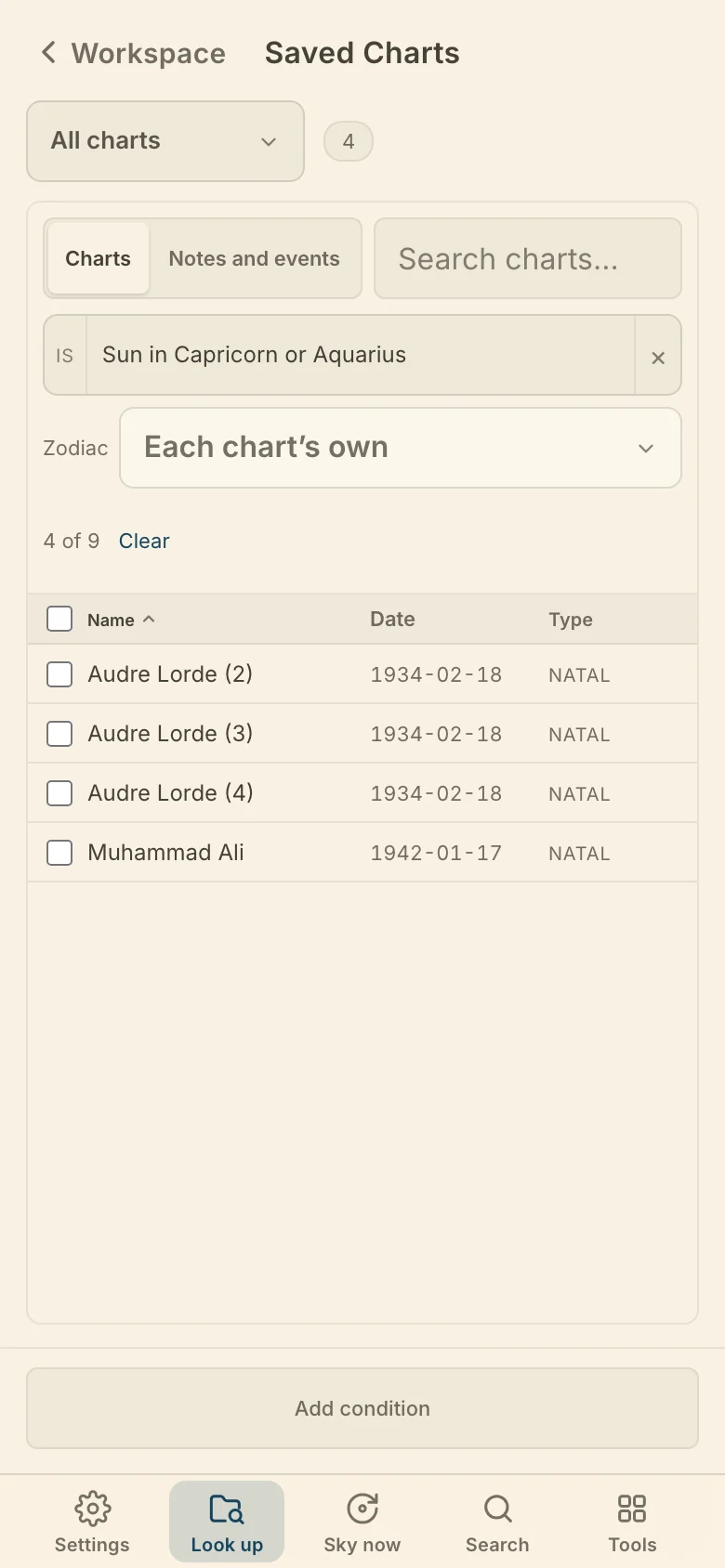
You can also press ⌘K and type "Saved charts".
A row marked "you" is your own chart. A row marked "dup" has the same name, date, time and place as another chart in the library. Saving, folders and favorites need an account, and Troubleshooting lists what else does.
Folders in Saved Charts
Folders let you sort your library into groups, such as clients or a research sample, and look at one group at a time. The dropdown at the top of the list picks the folder the list shows. Your Orbit and Favorites come first, then your own folders, then Uncategorized for charts in no folder. All charts shows everything.
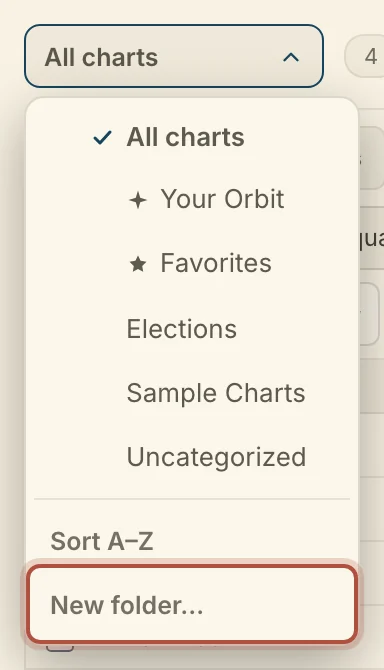
Click New folder… at the foot of the dropdown to make a folder. On a computer, + New Folder in the footer does the same. Drag folders in the dropdown to reorder them, or click Sort A–Z.
To rename or delete a folder, choose it, click … beside the dropdown, then Rename… or Delete folder…. Deleting a folder moves its charts to Uncategorized.
To file a chart, preview it, click Move and pick the folder.
Favorites and Your Orbit in Saved Charts
Favorites and Your Orbit are two marks you can put on a chart, so the charts you come back to most are always easy to reach. Click the star beside a chart's name in the preview to add it to Favorites. In the workspace, click the active tab and choose Add to Favorites. A favorite shows a star on its row and on its tab.
The button beside the star is Add to Your Orbit. Your Orbit is the set of charts you follow on the Dashboard, each with a place on the row at its top.
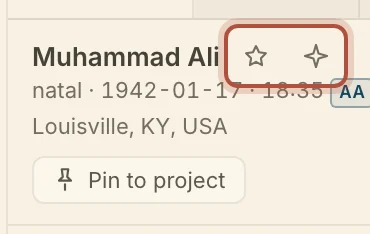
Both are marks on the chart. The chart stays in its own folder, and Favorites and Your Orbit at the top of the folder dropdown list every chart that carries the mark. Click the button again to take the mark off.
Previewing a saved chart
When you click a chart in the list, the right side of the window shows a preview of it, so you can check it is the one you want before opening it, and tidy your library from the same place. The preview has four tabs. Wheel draws the chart. Data lists its positions. About holds the public record for a well-known person and your own notes on who they are. Notes and events lists the chart's notes and dated events.
Pin to project writes a note on this chart and files it on a research project. Pick a project, or make one with New project…, then write the note and save it.
Move, Rename, Edit and Delete sit at the foot of the window while a chart is previewed. Rename changes only the name. Edit opens the full chart form. Deleting a chart deletes its notes and events too, and a recovery copy is kept for 30 days under Data recovery in Settings, Account.
To act on several charts, tick the box at the start of each row. The box at the top of the list ticks every chart showing. The footer then offers Move N…, Delete N and Open N, which opens each chart in its own tab. Clear drops the selection.
Searching saved charts by name
The search box above the list finds a chart by its name, and also by its place, date or type. Type in it and it matches each chart in the folder you are in. When other folders have matches too, the strip under the list says how many, and Search all charts widens the search.
If nothing matches, press Enter to start a new chart under the name you typed.
To find a chart by what is in it, such as every chart with Mars in Aries, see searching your charts by what is in them. To find a note or event without remembering which chart it is on, see finding a note or event.
Didn't answer it? Write to support@arcusastrology.com.